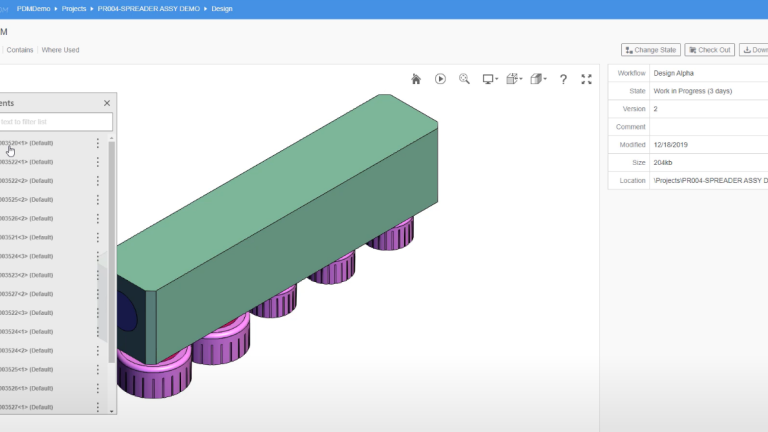
Accessing SOLIDWORKS PDM remotely can be done through different means, but ensuring access across many devices, browsers, and operating systems can be done with the SOLIDWORKS PDM Web2 Client.
SOLIDWORKS PDM is a powerful tool for data management across an organization for everyone from engineers to managers to technicians. However, there are many instances when a team member may need to access vaulted data outside of the office or on another device. This is the nature of work today: mobile, remote, and dynamic.
What is the SOLIDWORKS PDM Web2 Client?
The SOLIDWORKS PDM Web2 Client is included with all licenses for SOLIDWORKS PDM; however, it is not installed by default. When configured correctly, you can even allow safe access to your data to external users such as suppliers or customers. While the steps are outlined below, the installation and configuration of the Web2 Client can be done by our Professional Services team.
 Reviewing an assembly in the SOLIDWORKS PDM Web2 Client interface
To access the SOLIDWORKS PDM Web2 Client, you will need to have at least a viewer license available, but a contributor or editor can work as well. With the Web2 Client, you can access you’re engineering data through a web browser without the need to install any additional software.
What are the benefits of using the Web2 Client?
The SOLIDWORKS PDM Web2 Client interface has been tailored to both desktop and mobile experiences. In the web client, you can do many of the actions you would in PDM, such as searching, viewing, changing workflow state, and revision control. This means that you and your team have access to your engineering data and workflows anywhere they are.

Navigating the folder structure in Web2
With the Web2 Client, you can:
- View many file types such as SOLIDWORKS, PDF, Word, and Excel.
- Access your SOLIDWORKS PDM vault from any browser.
- Search and find your engineering data.
- Navigate your projects from a mobile device.
- Open SOLIDWORKS files with the eDrawings application
- Use the Contains and Where Used function.
- Review and approve pending documents.
How to install the SOLIDWORKS PDM Web2 Client
To find full installation instructions, look within the SOLIDWORKS program files installed in your local directory. The installation guides are typically found at C:\Program Files\SOLIDWORKS Corp\SOLIDWORKS PDM\Lang\GB.
To configure the Web2 Client to be accessed across a local network:
- Verify prerequisites are met, including the installation of IIS, if required.
- Install Web2 Server software with a SOLIDWORKS PDM Client.
- Modify the Web.config file.
- Create a local vault view on the Web server.
- Identify or create a Windows User account that will be used for the application pool identity.
- Identify / Create a local admin user on the server that will be used as the Web2 application account (Disable password policy rules if you do not want to have to reset the password regularly)
- Log in to the server using the user defined in step (a)
- Log in to the local vault view with ‘any’ PDM user (Admin is fine)
- Browse to any file and ‘Right click ‘over before dismissing the pop-up menu and instead previewing the file to confirm installation is complete.
- In IIS, change the Application Pool identity used for the Web2 website to instead execute using the Windows account defined in step (4).
- Test operation of Web2 on the server (use the “Browse *.80 (http)” command from within IIS).
- Log in as SOLIDWORKS PDM User
- Locate/View any file to confirm setup.
- Test on another PC / Device within the network. The default URL is “servername /SOLIDWORKSPDM” where servername is the name of the Web2 server.
Following the steps outlined above will assist you in making your SOLIDWORKS PDM vault accessible from any device within your network. Setting up the Web2 Client to be accessed from externally over the internet requires the web server to be configured to use SSL before implementing a redirect assisted by your ISP.
Fully Realizing the Power of SOLIDWORKS PDM
With Web2, you can keep your data and your team all working together, even on the go. Taking the power of SOLIDWORKS PDM with you on any device is a powerful functionality that is just one more way that SOLIDWORKS PDM keeps you connected and up to date on all of your projects and initiatives. By extending the user base of SOLIDWORKS PDM Professional to include the non-CAD, non-Windows-based users, you can ensure that all your data stays connected, traceable, and fully auditable.
To learn more about using the Web2 Client with your internal or external teams, contact us here.
Cloud Software
Berita Olahraga
Lowongan Kerja
Berita Terkini
Berita Terbaru
Berita Teknologi
Seputar Teknologi
Berita Politik
Resep Masakan
Pendidikan
