Patterning in SOLIDWORKS xDesign is at the heart of CAD modeling, enabling designers to create precise, repetitive features and design geometry. There are a couple of core options related to patterning, including linear and circular options.
For a deeper exploration of SOLIDWORKS xDesign, we can move beyond basic CAD and start to uncover additional techniques within the software. When looking at our classic jigsaw model, what may seem like a complex design can easily be broken down into a few, relatively simple features. From our basic model, all we might need to add are a few additional features with patterning techniques.
Adding Vents with Linear Patterning Techniques
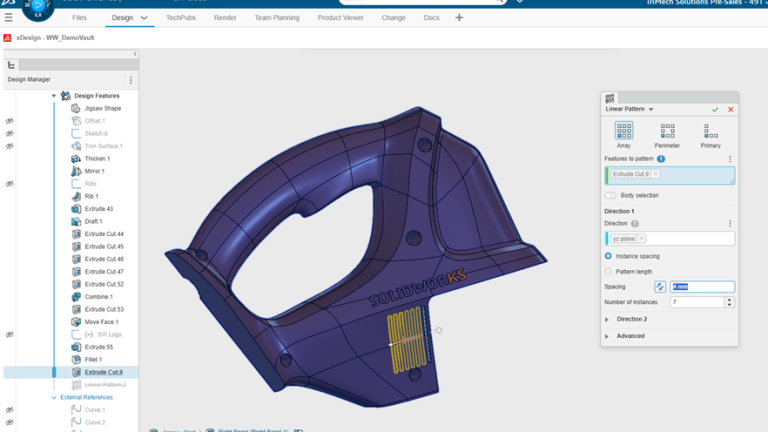
I’ve already created a cut into the jigsaw body. Naturally, I want to increase the surface area to draw in more air into the internal volume.
A linear pattern is easy to employ here and allows you to specify the patterned feature, direction, spacing, and total number of instances. Users can pattern features or bodies, depending on the design intent. Additionally, if you specify two directions, the pattern can be done for the full array, the perimeter, or just the primary directions.
 Using a linear pattern in SOLIDWORKS xDesign
Patterning Around a Cylindrical Body
On the topic of cooling, I will want to propagate extrude cuts around a common axis for the internal motor. This is a perfect opportunity for a circular pattern feature. Again, the user specifies the feature or body for the source, along with the axis or conical face, angle, and number of instances.

Circular patterning holes in a motor case
What About Mirroring?
When patterning in your part or assembly, the main idea is to repeat geometry without having to recreate it over and over. With linear or circular patterns, you must go along a specific direction or around an axis without being able to flip the instances across a plane.
This is where mirroring comes into play. Below, on the trigger switch, I mirror two bodies about the ZX plane to get two additional copies in my model. By default, the bodies won’t connect to the main body to create a single solid unless you toggle the Merge results option.

Mirroring bodies across the midplane of the model
Improving Your Designs with Advanced Techniques
No matter if you’re a novice or advanced CAD user, patterns are mission-critical to the design process. xDesign has very predictable patterning options similar to what you would find in traditional desktop SOLIDWORKS. Coupled with the ability to pattern features or bodies, this allows users to be very direct in creating the precise geometry that they need.
Looking to improve your design skills and learn more advanced techniques? Register for an upcoming training class here.
Cloud Software
Berita Olahraga
Lowongan Kerja
Berita Terkini
Berita Terbaru
Berita Teknologi
Seputar Teknologi
Berita Politik
Resep Masakan
Pendidikan
