Everyone knows that SOLIDWORKS files are interconnected and fully associative by default. Drawings, Assemblies, and Part files reference one another so that design changes automatically update without having to manually track the modifications through a long list of files.
However, outside of SOLIDWORKS, sometimes manual connections need to be made to non-CAD files. This could be to attach a purchase order to an assembly or to link a change order document to the project files to keep everyone in sync. Traditionally, SOLIDWORKS CAD has had the Design Binder that worked for SOLIDWORKS users but was not much help for those who needed to consume the data downstream.
How Does SOLIDWORKS PDM Help?
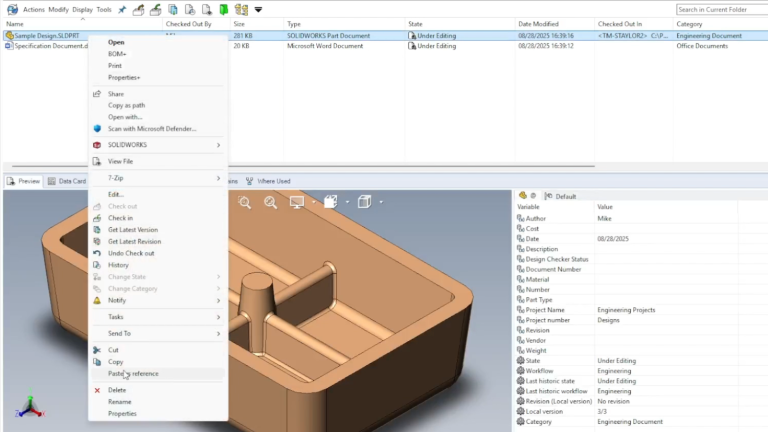
SOLIDWORKS PDM has what I like to call a “digital paper clip” by way of its Paste as reference command. Pasting a file or set of files as a reference will attach them together and show links in the Contains and Where Used tabs within SOLIDWORKS PDM. You no longer have to manually track affected files, as the data management tools will maintain these external file references to whichever vaulted files you require.
How to Manually Add a File Reference in SOLIDWORKS PDM
Whenever you need to manually link a non-CAD document to another file in your vault, you can follow these steps:
- Establish a file where you want the reference to be added, and which file is the reference. You can think of this like a parent/child file hierarchy similar to SOLIDWORKS parts and assemblies.
- Check out the target document where you want the reference file to be added. When adding references, you do not need to check out the reference file.
- Copy the reference file by right-clicking on it and using the flyout menu.
- On the target document, right-click and Paste as reference.
 SOLIDWORKS PDM Paste as reference command
 - On the Create File References pop-up window, click OK.
- Check in the target document, and the references will be synced to the database.
Where Do The Pasted References Go?
On the target document where the reference was added, you’ll find the reference listed in the Contains tab in the Windows File Explorer interface. In the example below, the specification document was added as a reference to the sample SOLIDWORKS part file.

The specification document is shown in the Contains tab of SOLIDWORKS PDM
This will also be the same if looking from the other direction. Navigating to the reference file, you will find the document it was attached to, as indicated in the Where Used tab.
Extending Beyond Paste as Reference Functionality
While the Paste as reference command is incredibly useful for SOLIDWORKS PDM users to link together files that don’t conform to the standard part, assembly, and drawing architecture, it does have its shortcomings. For example, this requires manually attaching references from the start, and they are treated as if they were any other file within SOLIDWORKS PDM.
SOLIDWORKS Manage can improve upon SOLIDWORKS PDM by providing additional tools for tracking non-CAD files and ensuring the entire team stays on track with projects. With additional flexibility for purchased components, specification sheets, and detailed reporting, SOLIDWORKS Manage could be the next step for your organization to take control of your data.
To learn more about SOLIDWORKS Manage, click here.
Cloud Software
Berita Olahraga
Lowongan Kerja
Berita Terkini
Berita Terbaru
Berita Teknologi
Seputar Teknologi
Berita Politik
Resep Masakan
Pendidikan
