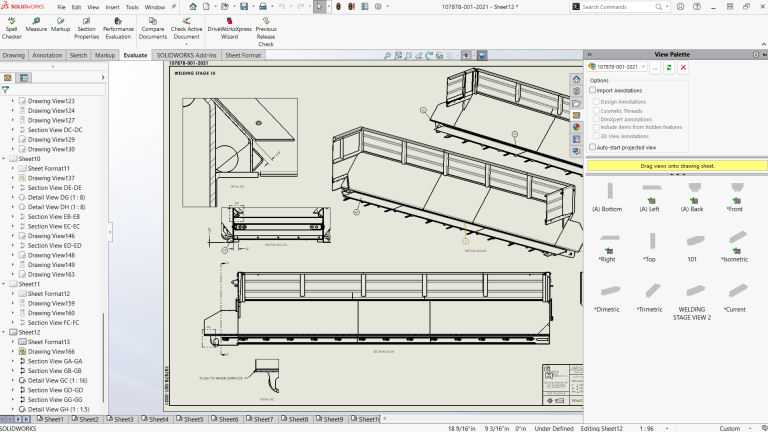
SOLIDWORKS has many options designed to increase speed, efficiency, and user convenience. Unfortunately, they aren’t always the same, and improvements in one area can come at a cost in another. Such is the case when working with a drawing’s View Palette.
What is the SOLIDWORKS View Palette?
When you have a SOLIDWORKS drawing document open, you can create new views with the Model View command on the Drawing tab of the Command Manager. The interface for this tool is the Property Manager on the left-side panel.
 Accessing the View Palette in the SOLIDWORKS Task Pane
An alternative method is to use the View Palette, one of the tabs of the Task Pane. The View Palette allows you to drag and drop thumbnail images of standard drawing views onto your drawing sheet. There are also convenient options to import annotations from the model or auto-start projected views.
The High Cost of the View Palette
The convenience the View Palette provides is great. All the views defined in your model are right there waiting for you to drag and drop wherever you want. It’s a great tool and works quite well. However, everything comes with a cost.
When you instruct a computer to perform an action, it must spend some time doing so. I know this sounds obvious, but it’s a fact people sometimes forget to consider. Some tasks are simple, quick calculations. The processing is done in so little time that we humans will barely notice.
Populating the View Palette with all those ready-to-go views requires a rebuild, including during the opening process. When working with drawings of smaller models, the rebuild time may or may not be noticeable, but it probably won’t be long enough to be annoying.

Performance Evaluation results from a simple assembly
For example, I tested a drawing of a simple gas strut assembly with 19 parts. After opening the drawing in Resolved Mode, the Performance Evaluation tool showed the file took 1.6 seconds to open, and the total rebuild time was only 0.3 seconds. Of that, 0.1 seconds was the time spent rebuilding the View Palette.
Hovering over the Rebuild View Palette bar, shown in blue, indicates the actual cost was 49.5% of the total rebuild time, so it was really closer to 1.5 seconds. On the one hand, that’s about half the total rebuild time. On the other hand, having the View Palette pre-populated with ready-to-drop views only cost me 1.5 seconds.
For drawings of most parts and small assemblies, this is not a problem. When working with large drawings, it’s a problem. The more complex the model, the longer the rebuild and opening times.
A Less Performant Example
We cover this topic in more depth, among many others, in our Large Assembly and Drawings Workshop. In that class, we use an assembly of an industrial-sized potato box.
For this experiment, I used a version of that assembly with a mere 728 components. Not a large assembly by many users’ standards, but far more than the 19-part gas strut assembly from the previous example. The first image in this article, and the following images, are from a 12-sheet drawing of the potato box.
As reported in the Performance Evaluation tool, opening the drawing in Resolved Mode results in a file open time of 56.7 seconds and a total rebuild time of 9.3 seconds. Of that rebuild time, 4.9 seconds, more than half, was rebuilding the View Palette.

Rebuild performance from a larger assembly
Every time you do a rebuild of the drawing, the View Palette is also rebuilt. Every one of those little proto-drawing views will be generated again, just in case you should happen to want to use them. Preventing this will save us some time.
Methods for Reducing Performance Hit
We have two options for preventing the View Palette from causing slowdowns when working with assemblies. One is a system-level option, which will prevent rebuilding the View Palette in all drawings. The other is document-specific, preventing the rebuild in a specific drawing.
Modifying the SOLIDWORKS System Options
For the universal solution, go to Options>System Options>Drawings and uncheck ‘Automatically populate View Palette with views.’ You can also search for “Pop” and it will take you right to it, as shown in the image below.

Stopping the View Palette from automatically generating
The View Palette will no longer automatically rebuild and, therefore, will not be immediately ready to use when you want to create a new view. Just select the model from the drop-down list at the top and hit the green refresh button to rebuild the View Palette on demand.
Removing the View Palette at the Document Level
If you want the View Palette to auto-populate for most of your drawings, but stop it from happening on large drawings, use the document-specific option instead. On the top right of the View Palette is a red ‘X’ button. Click it, and the View Palette will be cleared. It will no longer rebuild automatically. Just refresh it as previously described when you want to use it.

Clearing the SOLIDWORKS View Palette
Considerations for the Future
While the SOLIDWORKS View Palette is an incredible time-saving tool, it can cause performance concerns as the assembly scale grows. Depending on your overall goals, SOLIDWORKS provides multiple methods for reducing the View Palette’s performance hit.
To learn more tips and tricks to reduce the strain of a large assembly, register for an upcoming Large Assembly and Drawing Workshop here.
Cloud Software
Berita Olahraga
Lowongan Kerja
Berita Terkini
Berita Terbaru
Berita Teknologi
Seputar Teknologi
Berita Politik
Resep Masakan
Pendidikan
