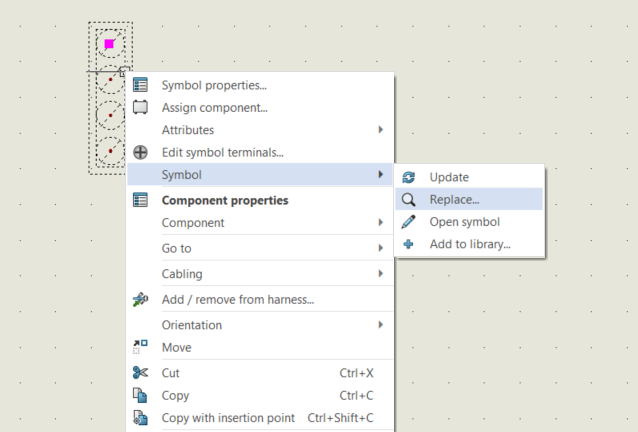
Are the Update and Replace symbol commands for your SOLIDWORKS Electrical Schematic not responding? The issue has come up several times for our support team, where this is the case. In these instances, the only way to update or replace a symbol is to delete the existing one and insert the new symbol.
We have found this to be a result of a communication blockage between the SOLIDWORKS Electrical program and the SOLIDWORKS Electrical Collaborative Server. Luckily, there is a quick test to diagnose the issue and a few easy steps to solve it.
How to Diagnose the Communication Breakdown
A quick test that can be done for further confirmation is to attempt to take a snapshot, through Process>Take Snapshot. While quite a different command from updating or replacing a symbol, we’ve found that the previously mentioned symbol symptoms and the Take Snapshot command not functioning seem to go hand in hand. So, if the Update, Replace, and Take Snapshot commands don’t work, we can fix them all with the steps below.
 SOLIDWORKS Electrical Take Snapshot command
How to Fix the Update and Replace Symbol Commands Not Responding
Since we have determined that a communication blockage is the root cause, the next step will be to determine the cause of the blockage. One of the easiest things to do is to allow all SOLIDWORKS and SOLIDWORKS Electrical-related services through any firewalls on your network. You will need to add the SOLIDWORKS Electrical Collaborative Server, the SQL Server Browser, and the SOLIDWORKS Licensing Server to the exception list on the firewall.
Additionally, the following ports will need an inbound and outbound rule configured for both TCP and UDP:
- 26666-26672: For the SOLIDWORKS Electrical Collaborative Server. This range may be higher to accommodate more users
- 1433-1434: For the SQL Server
- 25734-25735: For the SolidNetWork License Manager
- SQL Instance Port

Allowing the Electrical Collaborative Server through the firewall
Determining the Port used for the SOLIDWORKS Electrical SQL Instance
The port used for communication with the Microsoft SQL Server instance used for SOLIDWORKS Electrical can vary depending on the configuration.
To find the port used for the SQL instance, follow these steps:
- From the Start menu, locate the SQL Server Configuration Manager.
- In the tree view, click Protocols for the SQL instance for SOLIDWORKS Electrical.
- In the details pane, right-click TCP/IP>Properties and click the IP Addresses tab.
- Expand the IPAll object. If a number appears in the TCP Dynamic Ports field, this means that the port could change when the server restarts. To change this to a static port: Remove the number from the TCP Dynamic Ports field, place it in the TCP Port field, and then click Apply.
- Restart the SQL Service for the SOLIDWORKS Electrical Instance.
Along with everything, it is important to ensure that any anti-malware present on the machine is not blocking communication to the SOLIDWORKS Electrical Collaborative Server. While it can be tricky to navigate, ensuring smooth communication can make sure that the Replace and Update symbol commands continue to work.
If the issue still persists after troubleshooting with the above steps, please contact our Technical Support Team here.
Cloud Software
Berita Olahraga
Lowongan Kerja
Berita Terkini
Berita Terbaru
Berita Teknologi
Seputar Teknologi
Berita Politik
Resep Masakan
Pendidikan
