Not all SOLIDWORKS assemblies are created equal, especially not in terms of performance. Two versions of a geometrically identical assembly could open and rebuild faster or slower based on choices made during modeling.
Using a virtual subassembly can make our mate schemes more efficient, especially when using flexible subassemblies. To understand how to best utilize a SOLIDWORKS virtual subassembly, it is important to understand virtual components and why you need a subassembly in the first place.
Why Use Subassemblies?
The use of subassemblies helps make the top-level assembly easier for us humans to understand because functional groups of parts are easier to work with than one giant bucket of parts.
 Using subassemblies for components packaged together
Subassemblies can also simplify the mate structure of the overall assembly. When SOLIDWORKS loads or rebuilds an assembly, it needs to calculate all the mates together. The more of them there are, the more difficult and time-consuming that calculation is. It’s best to have as few mates in your top-level assembly as you can get away with.
What Are Virtual Components?
In a normal SOLIDWORKS assembly, each component exists as a separate file somewhere in your file system. The assembly file contains references to all these components, including their names and locations. A virtual component behaves like a normal one but doesn’t exist as a separate file in your file system.
All of its data is stored entirely within the parent assembly. This helps with file management by reducing the number of required files. It does not reduce the amount of needed data, just adds the component data to the assembly file.
How to Create Virtual Components
Existing normal components can be converted into virtual components by right-clicking on them and selecting Make Virtual. This severs the link to the original parent file, and the assembly now contains a virtual clone of the original component with no reference back to the original part or sub-assembly file it was created from.
Another way to create a new virtual component is to go to the Assembly tab of the Command Manager and use the flyout under the Insert Components button. Select either New Part or New Assembly to create a new virtual component of the selected type.

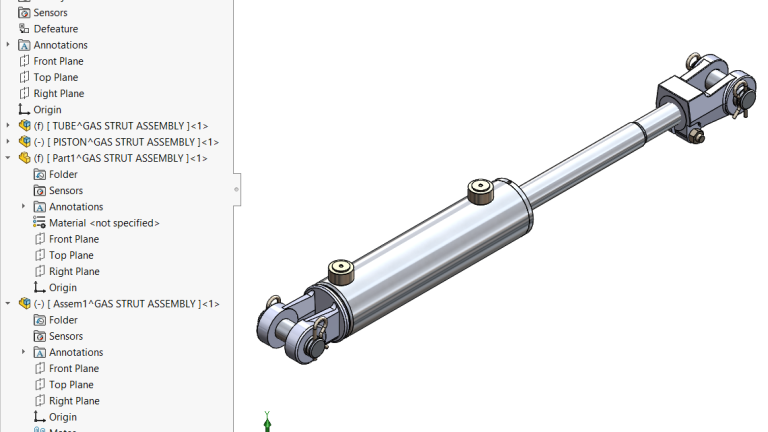
An assembly tree with virtual components
The virtual component’s names are enclosed in brackets, along with the name of the parent assembly they’re part of. Additionally, they can be renamed to better describe their function, just like any other component. They can be edited in context to add whatever is needed. For virtual sub-assemblies, existing components can be moved into them.
What Are Virtual Subassemblies?
Much like virtual components, a virtual subassembly does not exist outside of the context of the main assembly. While it can contain real components that live elsewhere on the system, the subassembly itself is not saved externally.
How to Create a Virtual Subassembly
You can drag components from the parent assembly’s tree into the virtual subassembly’s tree. It’s a good idea to group-select components when doing this, because if components that are mated together in the parent assembly are moved to a sub-assembly, their mates are also moved to the sub-assembly.

A virtual subassembly structure in the Assembly Tree
Virtual subassemblies can also be created by group-selecting multiple components, or a folder containing components, then right-clicking and selecting Form New Subassembly. This is an easy way to better organize a parent assembly into smaller functional groups.
Key Considerations for Using Virtual Subassemblies
Regorganizing Mates
Mated components moved to a subassembly will take their mates with them, reducing the number of mates at the top level. If mated components are not all in the same subassembly, they’ll have to stay at the top level.
It’s possible this will cause some mate errors at first, so you may need to modify which components are fixed. You might even find you had some unnecessary mates left behind in the top-level assembly, which can be deleted and replaced with a better mate scheme.
Saving Virtual Components Externally
Once a virtual component has been created, it does not have to stay virtual forever if you don’t want it to. You can always right-click on a virtual part or sub-assembly and select one of these options to create a unique file for the virtual part:
- Save Part(in External File)
- Save Assembly(in External File)
The component will now be saved out to its own file in the file system and will no longer be a virtual component. Depending on your settings when you save the top-level assembly, you may also be prompted to decide whether to keep any virtual components internal or save them externally at that time.
Realizing the True Benefit of Using Subassemblies
Virtual and externally saved subassemblies can help to better organize and streamline assembly modeling. Additionally, they can always be excluded from a BOM if you don’t want them to exist as line items in your system and instead are just using them for organization. That way, you can get the performance advantage of using them in your assemblies without affecting your final BOM structure.
For more helpful SOLIDWORKS assembly modeling best practices, register for an upcoming training class here.
Cloud Software
Berita Olahraga
Lowongan Kerja
Berita Terkini
Berita Terbaru
Berita Teknologi
Seputar Teknologi
Berita Politik
Resep Masakan
Pendidikan
