Lightweight Mode was added to SOLIDWORKS a long time ago to help assemblies open faster. It does an exceptional job at that task. Some assemblies will open about twice as fast in Lightweight Mode as in Resolved Mode, but not everybody knows when to use it or remembers to do so. Let’s examine Lightweight Mode and why it is so much faster than Resolved Mode. Then, we’ll consider a couple of ways to encourage or enforce its use.
CAD models contain body data, the exact geometric and topological definition of the model, and graphics data, so we humans have something to look at and interact with. Parametric CAD models, like SOLIDWORKS files, also contain feature history data.
This feature data includes all of the sketches, dimensions, relations, bosses, cuts, fillets, chamfers, etc., required to re-create the body data. This feature history is what makes parametric CAD modeling so powerful. You can change any instruction in the timeline of a model’s history to make rapid changes.
 SOLIDWORKS open modes
When you open an assembly in Resolved Mode, all the body data, graphics data, and feature history are loaded into your computer’s RAM. This makes sure you have access to absolutely everything you might need to edit that assembly. It’s also the slowest of the opening modes, because it pre-loads EVERYTHING!
When you open an assembly in Lightweight Mode, body data is loaded into RAM, but the feature data is not. The component’s icon has a feather superimposed on it to indicate it’s loaded a lightweight component. If you need to load the full feature tree for a component, you can still do so on a case-by-case basis.
In older versions of SOLIDWORKS, you’d right-click the component and select Set to Resolved from the context menu. That still works, but in newer versions, just expanding the tree for the component does the same thing. The feature data is loaded on the spot, and the feather icon disappears from the component.
In some specific situations, SOLIDWORKS users need every component in an assembly to be fully resolved. Some examples might include heavy use of global variables and equations, top-down modeling techniques, or using routing sub-assemblies. But for most users, Lightweight Mode is perfectly sufficient for the majority of the time. Yet, most continue to burn time loading assemblies in Resolved Mode because it’s the default option. However, there is a way to change that.
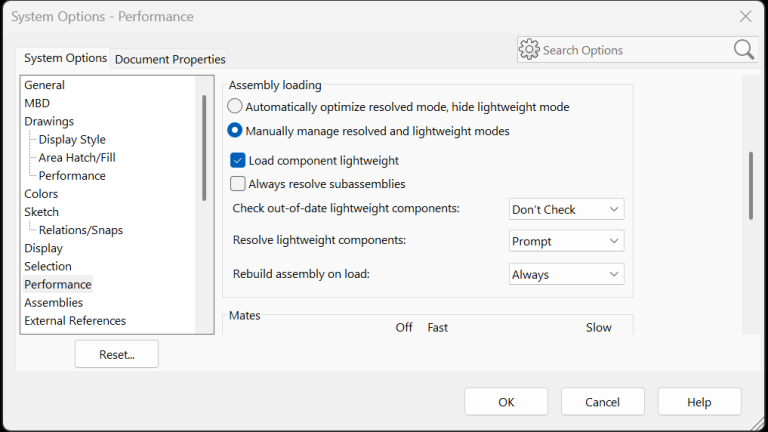
Go to Options>System Options>Performance and scroll down to the “Assembly loading section”. There you’ll find a checkbox labeled Load component lightweight.

SOLIDWORKS Assembly Loading System Options
Checking that box will simply change the default mode to Lightweight. Resolved Mode will still be available in the Open dialog box, but Lightweight will be selected if the user does not intentionally change modes.
Since SOLIDWORKS 2023, we’ve had two radio-button options at the top of the “Assembly loading section”, just above the Load component lightweight checkbox:
- Automatically optimize resolved mode, hide lightweight mode
- Manually manage resolved and lightweight modes
The second option is what we’ve done ever since lightweight mode was introduced, and it is the default option. The first option is what’s new and a potential game-changer for countless SOLIDWORKS users. If Lightweight Mode is so great, why would we want to hide it from ourselves? Well, we really wouldn’t want to do that unless we could make Resolved Mode just as good as Lightweight Mode. And that’s exactly what this new option is all about!
Selecting Automatically optimize resolved mode, hide lightweight mode does pretty much what it sounds like. Lightweight Mode will no longer be offered as an option in the Open dialog box. Resolved Mode, on the other hand, will function like Lightweight Mode did. No feather icon will appear on components in the FeatureManager Tree to indicate that not all their data has been loaded into RAM yet, but you’ll still get the same performance boost.
This option may not be for everyone. If you are working with complex models using a lot of equations and top-down design, you may encounter some limitations. However, most SOLIDWORKS users will probably benefit from enabling this option and just letting the system handle it.
Do you want more of these incredible time-saving tips delivered right to your inbox? Subscribe to our Bi-Weekly Tech Tip Newsletter here!
Cloud Software
Motivation
News
Pendidikan
Pendidikan
Download Anime
