SOLIDWORKS has messages that will pop up to warn you that your actions may have consequences. Many users just proceed as normal, completing the action and dealing with the warning pop-up each time.
However, some users will dismiss warning messages to clear them away. Dismissed messages will not appear the next time to warn you and will only reappear if you restore them.
How do Warning Messages Get Dismissed?
If you selected the checkbox “Don’t show again” when you have picked an option, the option you picked becomes the default, and SOLIDWORKS hides this dialog box in the future. You will no longer see the message to make a selection, and it will use the last option you chose when you selected “Don’t show again”.
Although this can save time by not having to click an extra button every time, some dialog boxes contain more options that you may wish to use in the future. It’s also worth noting that the wrong combination of dismissed messages with the wrong default selection can also cause all sorts of strange behavior in SOLIDWORKS.
 Dismissing a warning message in SOLIDWORKS
It’s a good idea to clear these messages out periodically to get a fresh start. This can also be very helpful if you’re having issues like errors in assemblies, assemblies not opening correctly, parts not updating, or other unexplained behavior.
Why Dismissing Messages Could Be Dangerous
When you edit a part in a separate window and then switch back to the parent assembly, a window appears asking if the assembly should be rebuilt.

Picking the safest option for dismissed messages
If you plan to dismiss the message, it is recommended to pick the safest option (in this case, Yes). If you selected No and dismissed the message, SOLIDWORKS will no longer automatically rebuild the assembly, and the models will not stay up to date on their own.
How to Restore SOLIDWORKS Dismissed Messages
Every once in a while, it is a good idea to review the dismissed messages and bring back ones that may be causing issues.
To restore dismissed messages in SOLIDWORKS:
- Open the SOLIDWORKS System Options.
- Navigate to the Messages/Errors/Warnings tab.
 Reviewing the current SOLIDWORKS dismissed messages
 - Review the list of dismissed messages.
- Select those you want to bring back and click OK.
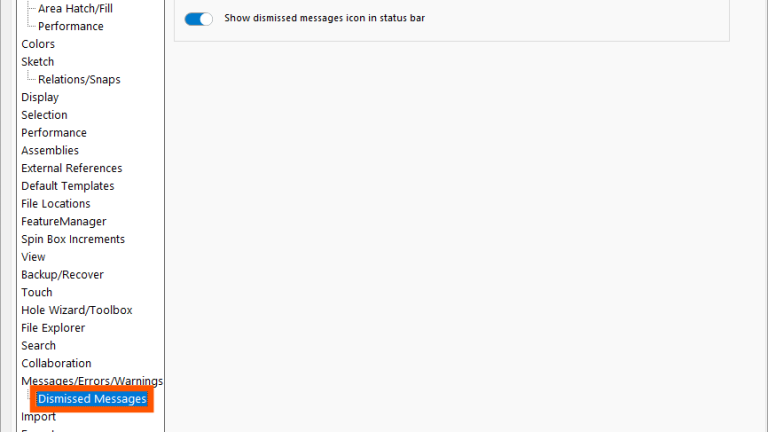
For SOLIDWORKS 2026 and newer, there is a small icon in the bottom right of the screen that will take you right to this location as well. The option to turn this button on or off is located just under the list of dismissed messages in the System Options.

Accessing dismissed messages in SOLIDWORKS 2026
There are a few messages that will not cause issues with an errant selection and can stay dismissed:
- Drawing Open Progress Indicator
- Welcome Dialog
- Assembly Open Progress Indicator
- Notification about Toolbox managed in PDM Vault
- Missing Font Notifications
Dismissing Messages with a Purpose
SOLIDWORKS warning messages exist to protect your data, models, and workflow, even when they feel inconvenient. Dismissing the wrong message can silently introduce errors, outdated models, or confusing behavior that’s difficult to trace later.
Taking a few minutes to review and restore dismissed messages can quickly resolve problems and prevent new ones from appearing. When in doubt, keep critical warnings active and choose the safest default options to ensure your designs remain accurate and reliable.
To learn more helpful SOLIDWORKS tips, subscribe to our bi-weekly Tech Tip Newsletter here.
PakarPBN
A Private Blog Network (PBN) is a collection of websites that are controlled by a single individual or organization and used primarily to build backlinks to a “money site” in order to influence its ranking in search engines such as Google. The core idea behind a PBN is based on the importance of backlinks in Google’s ranking algorithm. Since Google views backlinks as signals of authority and trust, some website owners attempt to artificially create these signals through a controlled network of sites.
In a typical PBN setup, the owner acquires expired or aged domains that already have existing authority, backlinks, and history. These domains are rebuilt with new content and hosted separately, often using different IP addresses, hosting providers, themes, and ownership details to make them appear unrelated. Within the content published on these sites, links are strategically placed that point to the main website the owner wants to rank higher. By doing this, the owner attempts to pass link equity (also known as “link juice”) from the PBN sites to the target website.
The purpose of a PBN is to give the impression that the target website is naturally earning links from multiple independent sources. If done effectively, this can temporarily improve keyword rankings, increase organic visibility, and drive more traffic from search results.
