There are times when a SOLIDWORKS Electrical Schematic user might encounter their library items displaying as a gray box with a red X in the preview window. This issue could appear for anything from symbols, title blocks, or manufacturer parts.
 A corrupted library component
The red X indicates that SOLIDWORKS Electrical has a corrupted library item and can not access it. While this can look alarming, it doesn’t always mean your database is truly damaged. In many cases, the issue lies with an incorrect file path or a missing link to the shared Application Data folder.
Troubleshooting a Corrupted Library Component
Let’s walk through the step-by-step process of diagnosing and resolving issues with corrupted components in SOLIDWORKS Electrical, and how to prevent them from happening again.
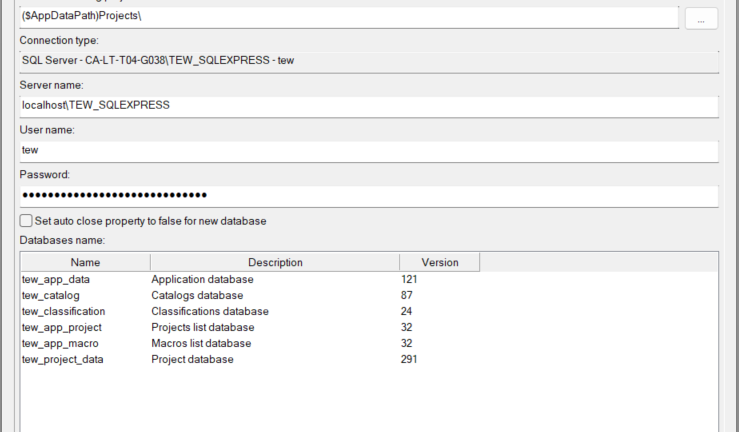
Step 1: Verify the Application Data Path
The first thing to check when you see a red X preview is the path to your Application Data folder. This folder stores all your shared resources, consisting of symbols, title blocks, macros, and manufacturer part previews. If the path to this folder isn’t correctly configured, SOLIDWORKS Electrical may display perfectly healthy data as corrupted because it simply can’t find the corresponding files.
To verify the Application Data folder path:
- Open SOLIDWORKS Electrical Schematic.
- Go to Tools > Application Settings > Databases tab.
- Look for the field labeled Application Data Folder.

Verifying the path to the Application data folder
SOLIDWORKS Electrical should be pointing to a shared network location if using a server-client setup, and it is typically on the same machine that hosts the SQL Server instance. If you notice that your Application Data path points to a location other than the correct shared directory, update it to the correct shared directory.
After you apply the change, restart SOLIDWORKS Electrical and check the symbols again. If the red X disappears and your previews reappear, you’ve resolved the issue.
Step 2: Confirm SQL Server and Application Data Consistency
If updating the Application Data path doesn’t fix the issue, the next step is to confirm that your SQL database instance and Application Data folder are aligned.
In a typical multi-user setup, the SQL databases (containing the logical data) and the Application Data folder (containing physical files) must remain synchronized. If one workstation points to a different version of the Application Data folder than the SQL server, inconsistencies will appear.
To check for compatibility:
- Verify that the Data Source in your SOLIDWORKS Electrical database settings matches the name of the Microsoft SQL Server hosting the Electrical databases.
- Verify that all users point to the same shared Application Data directory as the server.
Step 3: Recognize True Library Corruption
If your SQL connection and file paths are both correct, yet items still show the red X preview, this likely means the library data itself is corrupted. Unfortunately, once a symbol or manufacturer part becomes corrupted, there’s no direct repair function. At this stage, your best option is to restore a previous, healthy version of your environment.
Reasons that SOLIDWORKS Electrical components become corrupted include:
- Unexpected shutdowns during database writes
- Network interruptions during synchronization
- Microsoft SQL or file-system corruption
- Manual edits to database tables or Application Data files
Protect Against Future Issues with Environment Archives
The best safeguard against corruption is to take regular backups of your entire Electrical environment using the SOLIDWORKS Electrical Environment Archive command.
To create an archive of your SOLIDWORKS Electrical environment:
- In SOLIDWORKS Electrical Schematic, go to File > Archive Environment.
- Choose All Objects. This includes symbols, title blocks, macros, and manufacturer parts included with your SOLIDWORKS Electrical library.
- Save the .tewzip archive file in a secure, backed-up location.

SOLIDWORKS Electrical environment archive interface
By maintaining periodic environment archives, you can easily revert your system to a working state if corruption occurs. Instead of manually rebuilding or re-importing libraries, you can simply reupload the environment archive from a time before the issue appeared.
Maintaining Consistency with SOLIDWORKS Electrical
A red X in SOLIDWORKS Electrical doesn’t always spell disaster. In most cases, it’s just a missing or misconfigured path to your shared Application Data folder. However, if your libraries truly have corruption issues, having a consistent backup process using environment archives can save hours or even days of recovery work.
Regular backups, consistent network paths, and proper synchronization between SQL and shared folders are the keys to keeping your SOLIDWORKS Electrical environment healthy, stable, and ready for design work.
For additional troubleshooting for SOLIDWORKS Electrical, contact our technical support team here.
Cloud Software
Berita Olahraga
Lowongan Kerja
Berita Terkini
Berita Terbaru
Berita Teknologi
Seputar Teknologi
Berita Politik
Resep Masakan
Pendidikan
