
Knowing how to reorient SOLIDWORKS model views is critical for creating accurate drawings, assemblies, and presentations.
Whether you’re preparing a technical drawing or setting up a rendering, having the correct view alignment ensures clarity and consistency.
What Are The Standard SOLIDWORKS Model Views?
SOLIDWORKS uses standard model views such as the Front, Top, Right, and Isometric as the foundation for modeling and documentation. These standard views are consistent across part and assembly modeling, as well as placing views on drawings.
The Standard Views toolbar provides tools to:
- Orient the part, assembly, or sketch in one of the preset standard views.
- View the model or the drawing through one, two, or four viewports.
 Default SOLIDWORKS model views
Why Reorient SOLIDWORKS Views?
Sometimes imported models or complex assemblies come with orientations that don’t match the required design intent. Misaligned views can lead to confusing drawings with incorrect projections that can lead to challenges when applying dimensions and annotations.
This would also cause inefficiencies in workflow when creating exploded views or animations. Reorienting the model ensures that your design aligns with the required standards and any design project requirements.
How to Reorient SOLIDWORKS Model Views
Non-Destructive View Reorientation
The most common method to reorient a model view is using the View Orientation command. The View Orientation command can be accessed in two different ways.
- Press the spacebar on your keyboard to launch the command and open the view cube.
- Navigate to the Heads-up toolbar and select View Orientation.
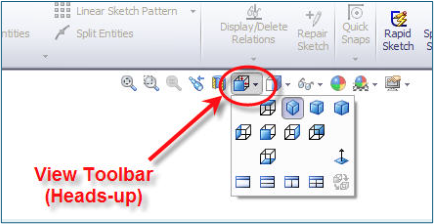
Accessing the View Orientation command in the Heads-up toolbar
In the View Orientation pop-up window, there are icons available for Standard Views, Rotate View, and Save Current View.
- Standard View lets you quickly switch between predefined views such as Front, Top, Right, and Left.
- Rotate View lets you rotate the model dynamically using the mouse or arrow keys.
- Save Current View allows you to store the oriented view to be used in the future for quick reorientation or in drawings.
Semi-Permanently Updating Model Views
What if your model’s default Left view doesn’t match your design intent? For example, if you want to reorient the model so that the current Left view needs to be the Right view.
For this, you will rotate the model to the desired orientation using the mouse or the View Orientation tool. Once the model is oriented as required, click on the Update Standard Views option in the View orientation toolbar.
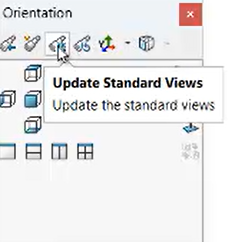
Updating SOLIDWORKS model views
SOLIDWORKS will now prompt you to select the standard view to which this new orientation needs to be assigned. You can select one of the views to which this new orientation should be assigned. Once the view has been assigned, SOLIDWORKS will display a message asking you to verify the change.
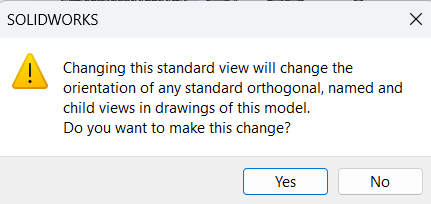
Dialog to reorient SOLIDWORKS model views
Accepting the change by selecting “Yes” in the message dialog will update all standard views based on this new model view orientation. This method is particularly useful for imported parts or assemblies that come with unconventional orientations.
Resetting SOLIDWORKS Views
In case you need to revert to the original orientations, you can select the Reset Standard Views option. This will remove all customizations and revert the SOLIDWORKS model views to their original configuration.
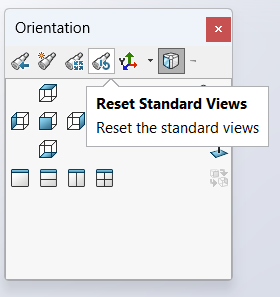
Reverting SOLIDWORKS views to their original orientation
Reorienting a model view in SOLIDWORKS is a simple yet very important process that can significantly improve your design workflow. Whether you’re working on a single part or a large assembly, proper view orientation sets the foundation for accurate representation of the model, both for drawing documentation as well as modeling activities.
To learn more time-saving SOLIDWORKS tips and tricks, sign up for our bi-weekly Tech Tip newsletter here.
PakarPBN
A Private Blog Network (PBN) is a collection of websites that are controlled by a single individual or organization and used primarily to build backlinks to a “money site” in order to influence its ranking in search engines such as Google. The core idea behind a PBN is based on the importance of backlinks in Google’s ranking algorithm. Since Google views backlinks as signals of authority and trust, some website owners attempt to artificially create these signals through a controlled network of sites.
In a typical PBN setup, the owner acquires expired or aged domains that already have existing authority, backlinks, and history. These domains are rebuilt with new content and hosted separately, often using different IP addresses, hosting providers, themes, and ownership details to make them appear unrelated. Within the content published on these sites, links are strategically placed that point to the main website the owner wants to rank higher. By doing this, the owner attempts to pass link equity (also known as “link juice”) from the PBN sites to the target website.
The purpose of a PBN is to give the impression that the target website is naturally earning links from multiple independent sources. If done effectively, this can temporarily improve keyword rankings, increase organic visibility, and drive more traffic from search results.
