SOLIDWORKS xDesign is a browser-based design system composed of several tools. This article focuses on the tool xDrawing found in the Manufacturing Definition Creator role.
xDrawing conveys manufacturing information about designs and prepares them for production. It uniquely combines model-based design with traditional 2D drawings. Since traditional 2D drawings can be created, title blocks and templates of different sizes must also be created to convey manufacturing information efficiently
How to Easily Create a Drawing in SOLIDWORKS xDesign Using xDrawing
The first step in the process is to create a drawing. Every drawing must start with an existing part, meaning that they cannot be created independently. To do this, open any existing part in xDesign and either use the Switch App command in the Standard tab of the Action Bar or press the “X” key on your keyboard.
 SOLIDWORKS xDesign Switch App command
This will bring up the app switcher dialog, allowing you to select xDrawing. When creating the very first drawing for a part or assembly, you will need to give it a name before proceeding.
Setting Up the Drawing Standard
Once in the xDrawing app, the first step is to set the drawing standard. This is done by switching to the Tools tab on the Action Bar and selecting the System Options icon that looks like a gear. This will set the drawing standard and units for the drawing.

System Options menu in xDrawing
Creating a Drawing Sheet
Now that the drawing standard and other options are set, a drawing sheet needs to be created. This is done using the Create Sheet icon in the Drawing tab of the Action Bar. Select the appropriate size for the sheet, which will correspond to the drawing template being created.
Next, select the Activate Sheet Background icon to enter the template editor. The title block itself is a large table consisting of rows, columns, and cells. Adding rows or columns and editing cells work similarly to a typical spreadsheet program.

Editing the title block appearance
To edit the table appearance, select anywhere on the title block and choose “Edit General Table” which will be the first option in the list of commands. The General Table Editor allows you to control the line display around each cell. Click “Table Borders” to modify these settings.
Editing the Title Block
Now that the table appearance is set, it’s time to edit the contents. To enter edit mode, select anywhere on the table and choose “Edit Cells” which will be the second option in the list of commands.

In-context menu of commands
You can select rows, columns, or individual cells to adjust font and alignment. Selecting a cell will also allow you to link a model attribute to the cell.
To link a cell to an attribute:
- Select the desired cell.
- Click the “Attributes” tab.
- Choose an attribute from the dropdown list.
- Click “Insert Attribute” to link the cell to the product in the drawing.

Inserting an attribute into a cell
Rows and columns can be added via the right-click menu, along with the option to merge cells. This allows the title block to contain all necessary information for manufacturing. Once the title block layout is complete, the sheet template can be saved.
Saving the Sheet Template
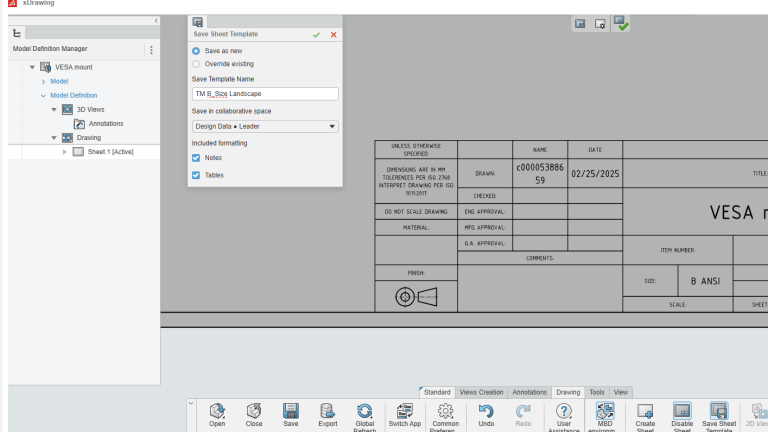
To save the template, navigate to the Drawing tab of the Action Bar and click “Save Sheet Template.” The Save dialog will appear, allowing you to name the template and select a collaborative space to save to. It is crucial to choose a space accessible to all users who need to use the template, otherwise, it will be inaccessible. This process must be repeated for each template size needed.

Saving a xDrawing sheet template
Using a Saved Template
Next time a new sheet is created the saved sheet template can be selected. This can be done when creating an entirely new drawing or when adding additional sheets to existing drawings.
To use a saved drawing template:
- Go to the Drawing tab of the Action Bar.
- Select the “Template” tab instead of “New.”
- Click “Choose Template” to open the search window.
- Find and select the saved template.
- Click “OK” to apply the template.

Creating a new xDrawing sheet
The xDrawing tool is an excellent way to convey manufacturing information about a design. Using templates ensures consistency with company standards and simplifies the drawing creation process. With these easy-to-follow steps, teams can efficiently create, edit, and reuse custom templates within xDrawing. Bundled alongside the other apps in SOLIDWORKS xDesign, this provides an industry-leading browser-based environment for all your design and production needs.
To learn more about SOLIDWORKS xDesign, read our other articles here.
Cloud Software
Berita Olahraga
Lowongan Kerja
Berita Terkini
Berita Terbaru
Berita Teknologi
Seputar Teknologi
Berita Politik
Resep Masakan
Pendidikan
