SolidCAM’s Send To feature is a built-in utility that helps you quickly package and share your CAM-Part project.
This feature is immensely helpful when you need to share your project with technical support, another programmer, or an archive location. By using the Send To feature, you ensure that whoever receives the file has the same environment you used to program.
What is the Send To Functionality
The Send To functionality is your all-in-one solution for portability, consistency, and peace of mind when working with SolidCAM projects. It simplifies the process, saves time, and ensures that your data remains complete and accurate every time you share or move a project.
 Information included with a SolidCAM export
This eliminates the risk of missing dependencies, prevents errors during re-posting or simulation, and makes collaboration smooth and efficient. It’s also an excellent solution for archiving completed jobs, transferring projects between computers, or sharing work with other programmers without worrying about compatibility issues.
Send To is commonly used for:
- Sending your project to TriMech for SolidCAM Support for troubleshooting or post-processor customization.
- Sharing a job with another programmer or workstation so they have the same setup.
- Archiving a complete project for future reference.
How to Use SolidCAM Send To
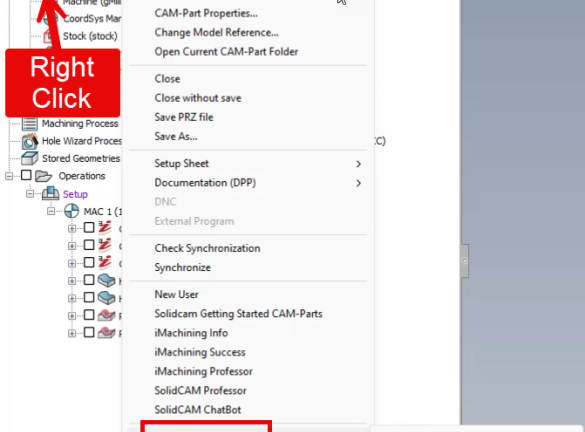
- Navigate to the SolidCAM Manager in the Feature Tree.
- Right-click on your CAM-Part.
- Navigate to Send To… > Folder.
 Accessing SolidCAM Send To functionality
 - When prompted, select Package for Technical support (use database in CAM part directory).
 Adding technical support information to the export
 - Specify the destination folder for the package.
- SolidCAM creates a ZIP archive containing all the relevant files.
- Attach the ZIP to an email, upload it to a shared drive, or send it directly to TriMech Technical Support for troubleshooting.
It is a best practice to include MachSim information when exporting the CAM-Part from SolidCAM. This ensures all the environmental information is packaged with the CAM-Part to improve troubleshooting.
What’s Included with the Send To File?
When you use Send To, SolidCAM automatically gathers all the essential data related to your CAM‑Part and compresses it into a single ZIP archive. This package includes your CAM‑Part file (.prt or .prz), all toolpath and simulation data, the tools used in that project, and the post‑processor file (.gpp) along with the machine definition (.vmid).
If you select the option to include MachSim, the machine simulation files will be added as well. Finally, the archive contains a SendTo.info file, which provides detailed version information about your CAD system, CAM environment, and operating system. This file is especially useful for troubleshooting because it helps support teams understand your exact setup.
The Best Tool for SolidCAM Troubleshooting
In short, the Send To feature in SolidCAM is one of the most reliable and convenient tools available for sharing, backing up, or transferring an entire CAM-Part project without losing any critical data or settings. This functionality is designed to save you time and eliminate the frustration of manually collecting individual files, which can often lead to missing components or errors during transfer.
Instead, SolidCAM handles all of this automatically. With just a few clicks, the software gathers every essential element of your project and packages it neatly into a single, organized ZIP archive. This archive is comprehensive and includes far more than just your CAM-Part file. It contains all associated resources, including tool libraries, post-processor files (.gpp), machine definition files (.vmid), and even optional MachSim data for machine simulation if you choose to include it.
This extra layer of information is invaluable for troubleshooting because it allows support teams to replicate your exact setup quickly and accurately.
Looking to pass your SolidCAM exports to our Technical Support team? Report a problem here.
PakarPBN
A Private Blog Network (PBN) is a collection of websites that are controlled by a single individual or organization and used primarily to build backlinks to a “money site” in order to influence its ranking in search engines such as Google. The core idea behind a PBN is based on the importance of backlinks in Google’s ranking algorithm. Since Google views backlinks as signals of authority and trust, some website owners attempt to artificially create these signals through a controlled network of sites.
In a typical PBN setup, the owner acquires expired or aged domains that already have existing authority, backlinks, and history. These domains are rebuilt with new content and hosted separately, often using different IP addresses, hosting providers, themes, and ownership details to make them appear unrelated. Within the content published on these sites, links are strategically placed that point to the main website the owner wants to rank higher. By doing this, the owner attempts to pass link equity (also known as “link juice”) from the PBN sites to the target website.
The purpose of a PBN is to give the impression that the target website is naturally earning links from multiple independent sources. If done effectively, this can temporarily improve keyword rankings, increase organic visibility, and drive more traffic from search results.
