Effective collaboration with external partners is essential for modern businesses. The 3DEXPERIENCE platform offers a suite of powerful tools designed to facilitate both internal and external collaboration seamlessly.
One of the standout features is the ability to invite external users onto your platform, making it easy and fast to integrate external collaborators into your projects. This guide will break down the invitation steps and explore the licensing options available for these external team members, ensuring they can retain and use their licenses from their own platforms.
Inviting Outside Members to Your 3DEXPERIENCE Tenant
Collaborative Spaces act as independent vaults within a company, allowing workers to access only relevant data. This autonomy is ideal for external collaboration, enabling outside contractors to work in a secure environment without accessing sensitive information. Simply create a designated Collaborative Space for joint efforts between your company and external partners.
 Allowing external collaboration on 3DEXPERIENCE
It’s possible to assign your own licenses from your tenant or allow other 3DEXPERIENCE platform users to join your tenant and collaborate.
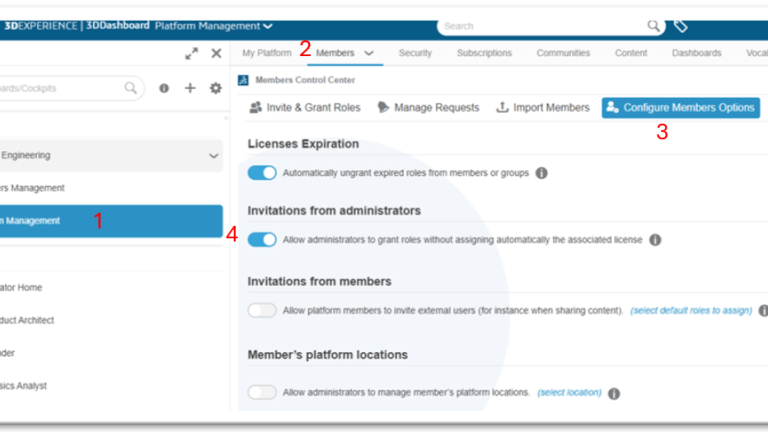
To enable external collaborators to access your 3DEXPERIENCE without using your licenses:
- Navigate to the Platform Management dashboard.
- Select the Members tab.
- Go to Configure Member Options.
- Enable Allow adminstrators to grant roles without assigning automatically the associated license.
How to Invite External Members to 3DEXPERIENCE
The workflow for inviting an outside contractor to a Collaborative Space is essentially the same as granting access to an internal user, but with a few distinctions. The contractor is invited to your tenant, granted access to the appropriate Collaborative Space (3DSwym community, optionally), and given the relevant permissions and restrictions.
To invite an external member to 3DEXPERIENCE:
- Go to the Platform Management dashboard, go to the Members tab, and select Invite Members.
 Inviting external members to 3DEXPERIENCE
 - Enter the email adress for the person you’d like to invite. It is helpful to use an email already associated to a 3DEXPERIENCE ID otherwise they will be prompted to create one when they log in. Be sure to select External for their access rights.

- Assign the roles that the external member will need to collaborate. By checking the role on the left but leaving the toggle on the left off, you will allow them to use their own licenses without giving them access to your team’s pool. However, if you want to give them a license from your pool, you can restrict access to just this tenant.
 Assigning licenses for 3DEXPERIENCE roles
- Assign License: If this is checked, then the contractor will consume one of the licenses you purchased for that role. If the contractor already has a license for that role, you may uncheck Assign License, and the contractor will use their own license.
- Restrict Usage to this Platform: If this is checked, then licenses that you grant to the contractor will be inaccessible outside your tenant. This can prevent external (or internal) workers from making use of your purchased licenses outside of your company.
- Invite the user, and they will be notified via email. By following the information in the email, the external collaborator will gain access to your 3DEXPERIENCE data.
Non-Restricted Access for an External Collaborator
If an external 3DEXPERIENCE collaborator is using roles from their platform to come on yours, they need to change a setting in their member profile. The platform administrator must ensure the Restrict Usage to this Platform button is deactivated. If left activated, they won’t be able to log in to your 3DExperience Platform, even if they receive the email.
Sharing Data with External Partners in the 3DEXPERIENCE Platform
Now that you’ve invited the external collaborator, you can decide which data you want them to access. For this situation, it can be helpful to create a specific Collaborative Space that the external person only has access to so they don’t have access to the main company data.

Creating a new Collaborative Space on 3DEXPERIENCE
When adding additional members to Collaborative Spaces, you can give them different levels of access to the data.
- Contributor: Can read and add content.
- Author: Can read, add, and edit content.
- Leader & Owner: Can read, add, edit, and delete content.
A Better Way to Collaborate
Once these steps are complete and the contractor accepts the invitation to your tenant, they will be able to fully collaborate from the shared Collaborative Space without having visibility of anything else in your organization. Whether you want them to have access to your team’s licenses or not is up to you, but inviting external members can make it easier to collaborate inside and outside of your organization.
To see how to set up your 3DEXPERIENCE platform or manage SOLIDWORKS data, sign up for one of TriMech’s Training Courses here.
Cloud Software
Berita Olahraga
Lowongan Kerja
Berita Terkini
Berita Terbaru
Berita Teknologi
Seputar Teknologi
Berita Politik
Resep Masakan
Pendidikan
