In SOLIDWORKS PDM, you can search for files in the vault based on certain criteria, including being able to search for specific file variables. For example, if you don’t know the name of a file, you can search for its description or some other variable value. Although variables can be seen on the data card for each file, many of our clients add custom columns for important variables in the search results view.
This allows you to see the value of variables for multiple files at once. Things get tricky when files have multiple configurations. This is because variable values could be different for each configuration, and the SOLIDWORKS PDM search result columns will only display a value from one of those configurations.
Adding the Configuration Column to PDM Search Results
I highly recommend that your Quick Search Result Columns and Search Result Columns include the “Configuration” column. It’s part of the default column set, but I’ve encountered multiple clients who don’t have it in their view. If it’s missing from your view, then follow the steps below to add it.
These steps apply to the Quick Search feature of SOLIDWORKS PDM, but it’s a similar process for the regular SOLIDWORKS PDM search results.
- Open the SOLIDWORKS PDM Administration Tool>Expand the selected PDM Vault>Expand Columns >Expand Quick Search Result Columns.
- If you have an existing column set, then right-click on it and select Open. Otherwise, right-click on Quick Search Result Columns and select “New Column Set”.
- On the Customizable Columns dialog, click the Add button and choose <Configuration>.
- Move the new column up or down in the list, if desired.
- Click OK.
 Adding a Quick Search Result column for the model configuration
Using Quick Search Variables in Queries
In order to search for variables using Quick Search, we need to specify a list of variables to be searchable.
- Open the SOLIDWORKS PDM Administration Tool and expand the Lists section.
- Right-click on Quick Search Variable Lists and select “New List”.
- Click the Add button and add the desired variables from your vault.
- Enable the appropriate permissions for users and/or groups.
- Click OK.
To learn more about Quick Search Variables, read our other article here: SOLIDWORKS PDM 2020 Quick Search Variable Lists
PDM Search Results for Files with Multiple Configurations
As an example, I’ve created two different part files, and they each have four configurations. I used naming conventions and incorporated some of the same information in different variables to make things easier to understand. Each configuration has a different number of holes. Config1 has one hole, Config2 has two holes, and so on.
The only difference between the two files is that one has the same part number in all configurations, and the other has a configuration-specific part number. In the file with multiple part numbers, Config1 has part number 1111, Config2 has Part Number 2222, and so on. The file with a single part number has 1234 for the part number of each configuration.
Values That Exist in Only One Configuration
If I search for the part number “3333”, then my file Plate Multiple PN.SLDPRT is returned, as expected. We can see that the value I searched for is found in Config3 only. Since the value is found in only one configuration, the other variable columns will show values for that particular configuration. We can be assured that Config3 is a blue plate with three holes, just by looking at the columns in this case.

Searching for a variable value that exists in only one configuration
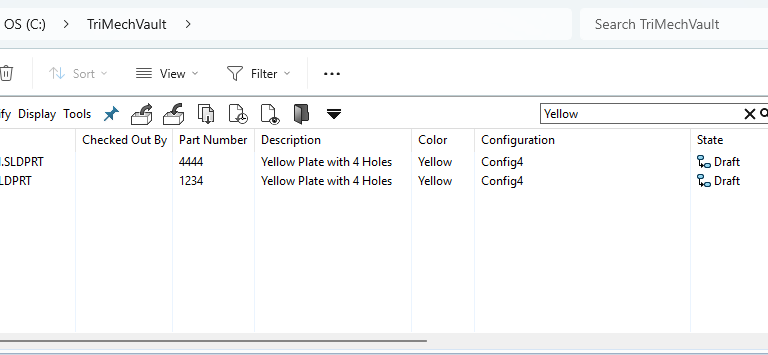
If I search for the color “Yellow” it is found only in Config4. As such, the part number and description of Config4 are displayed in the search results.

Search results for a color that exists in only one configuration
Values That Exist in Multiple Configurations
Things get interesting when a value is found in more than one configuration. Fortunately, the Configuration column will show the name of each configuration where the value exists. However, columns for configuration-specific variables will only display a value from one of the configurations. The value shown will be the last modified value.
I’m going to search for part number “1234”, but before doing so, I’ll check out the file and add the word “UPDATE” to the Description variable of Config1 and the Color variable of Config4. Then check it back in.

Modifying the Description variable in Config1
Next, I’ll search for part number “1234” and the file Plate Single PN.SLDPRT is returned, as expected. Notice, the Configuration column shows that the part number 1234 is found in all four configurations. It’s important to know that the configuration information only applies to the searched value. Other values are shown, such as for description and color, but the search results do not say which configurations those non-searched values belong to. They are simply the last modified values. Because of this, there could be variable values coming from different configurations displayed on the same line. For instance, “Red Plate with 1 hole” and “Yellow” as shown below.

SOLIDWORKS PDM search results for a variable value that exists in multiple configurations.
Whether using Quick Search, Integrated Search, or the standalone SOLIDWORKS PDM Search Tool, the same concept applies. If the Configuration column shows that the searched value is found in multiple configurations, then other variables could be coming from any one of those configurations, depending on when the values were modified. Therefore, once you locate the files you’re looking for, it’s best to view the data card if you need to know the values of other variables that you weren’t specifically searching for.
Want to learn more about customizing your SOLIDWORKS PDM system? Register for an upcoming training class here.
Cloud Software
Berita Olahraga
Lowongan Kerja
Berita Terkini
Berita Terbaru
Berita Teknologi
Seputar Teknologi
Berita Politik
Resep Masakan
Pendidikan
