Before DraftSight 2026, users were met with an empty drawing when launching the software. While this can let you immediately start a new drawing or navigate elsewhere, beginners would be left without much guidance.
For premium-level licenses, including DraftSight Premium, Enterprise Plus, and Mechanical, you can now use the newly introduced Start Page to quickly get started with DraftSight 2026. The Start Page puts many new options at your fingertips.
What is the Start Page?
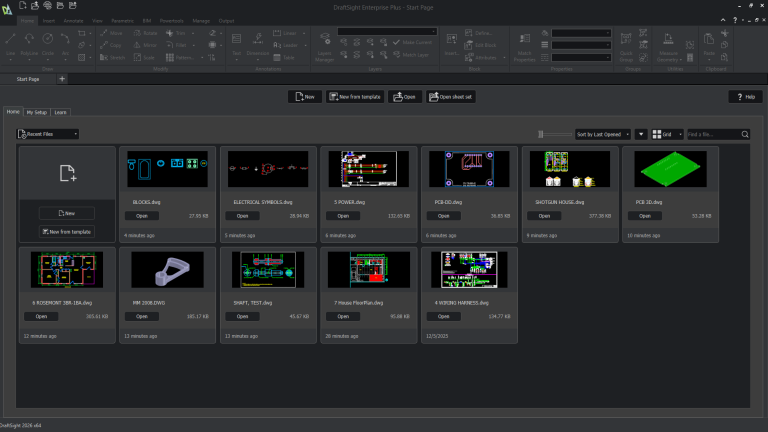
Rather than a NONAME_0.dwg drawing tab, we’re now greeted with the Start Page shown below. The most obvious feature is the list of tiles showing recently opened drawings. This gives us a quicker and easier way to reopen these files than the Recent Local Documents list found by clicking on the DraftSight logo in the upper left corner of the UI.
 The DraftSight 2026 Start Page
We also have shortcut buttons for New, New from template, Open, Open sheet set, and Help. The old plus button that also starts a new drawing from the default template is still there next to the Start Page tab.
The Home Tab
On the Home tab, there is a collection of controls just above and to the right of the drawing tiles. The first of them is a slider that lets us enlarge the drawing tiles up to the maximum shown below.
Recent Documents
Files are shown in the order they were last opened, most recent shown first. Another option is to sort them all by name instead. The order can also be reversed with the ‘down arrow’ button just to the right of the Sort by option.

DraftSight recent documents sorted by name
If a grid of tiles isn’t your thing, you can also switch to a list view. This view gives you the option to reorder the file list by use of the columns Name, Last Opened, Author, Size, Location, and Type, similar to the columns available in the Windows File Explorer.
Favorite Files
The Favorite Files view is going to be empty until you mark some drawings as favorites. Right-clicking any file in the Start Page brings up a menu with the following options:
- Open
- Delete
- Browse Containing Folder…
- Add to favorites
- Remove from recent
Click the Add to favorites option to make that file easier to find in the future!
Other Tabs on the DraftSight 2026 Start Page
Other than the Home tab, the newly introduced Start Page includes other helpful information sorted into tabs.
My Setup Tab
The My Setup tab includes helpful information and tools to help customize the user interface. This includes the workspace setup, view palettes, and other setting changes.
My Workspace
On the left side of the screen, under the heading My Workspace, we have shortcuts for switching between the 3D Modeling, CAD General, Classic, and Drafting and Annotation workspaces. Under each workspace, there is a short description for each to help you choose the best option.

The My Setup tab on the Start Page
There is also a button to help you start creating your own custom workspace. Not everyone is going to want to take UI customization that far, but for those who do, it’s nice to have an easy starting point.
Palettes
The center of the tab has a list of palettes, the side panels that show up on the right side of the UI by default. Checkmarks show which ones are currently activated, and you can scroll the list to toggle them on or off with a click.
Be careful with the Select All checkbox at the top of the list. Checking it will turn all the palettes on, and unchecking it will turn them all off.
Quick Settings
The right side of the My Setup tab includes a very welcome addition to DraftSight. The Quick Settings section gathers some extremely useful settings into one easy-to-access place.

Quick Settings in DraftSight
All of these can be found in Options, but you need to know what you’re looking for. Putting them all here was a stroke of genius!
The Learn Tab
Finally, we come to the Learn tab. It gives us direct links to pages and blog articles on the DraftSight website on topics such as the DraftSight CAD Certification Program, DraftSight Tutorials, and What’s New in DraftSight 2026. There’s some great content on the pages featured here, so check that tab from time to time and explore those links.
Enhancing DraftSight 2026
The Start Page is just one of the incredible enhancements in DraftSight 2026. Others include optimization of existing workspaces and tools, floating windows for working with multiple screens, new file types available for a host of purposes, new automation options with DIESEL expressions, and much more.
To see the latest enhancements to DraftSight, schedule a complimentary Client Care Visit here.
PakarPBN
A Private Blog Network (PBN) is a collection of websites that are controlled by a single individual or organization and used primarily to build backlinks to a “money site” in order to influence its ranking in search engines such as Google. The core idea behind a PBN is based on the importance of backlinks in Google’s ranking algorithm. Since Google views backlinks as signals of authority and trust, some website owners attempt to artificially create these signals through a controlled network of sites.
In a typical PBN setup, the owner acquires expired or aged domains that already have existing authority, backlinks, and history. These domains are rebuilt with new content and hosted separately, often using different IP addresses, hosting providers, themes, and ownership details to make them appear unrelated. Within the content published on these sites, links are strategically placed that point to the main website the owner wants to rank higher. By doing this, the owner attempts to pass link equity (also known as “link juice”) from the PBN sites to the target website.
The purpose of a PBN is to give the impression that the target website is naturally earning links from multiple independent sources. If done effectively, this can temporarily improve keyword rankings, increase organic visibility, and drive more traffic from search results.
