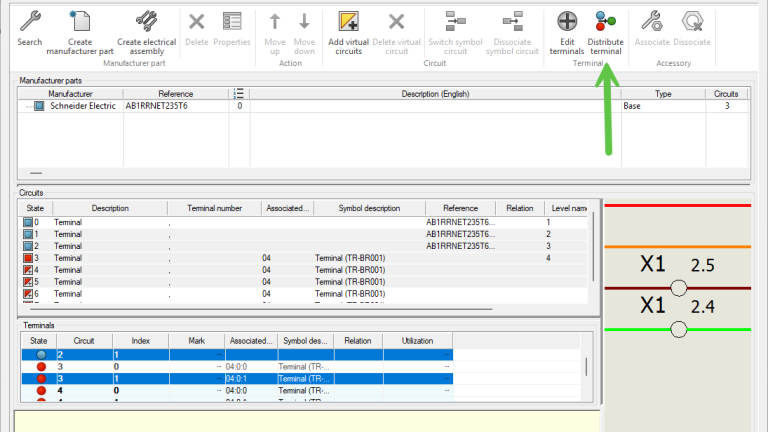
Prior to SOLIDWORKS Electrical 2025, unlike other electrical components, you were unable to insert multiple terminal symbols. Therefore, a workaround is required for single-level terminals in versions older than SOLIDWORKS 2025.
While SOLIDWORKS Electrical 2025 and newer versions added a new workflow to natively represent single-level terminals with multiple symbols, there is a solution for those on previous versions. I’ll cover this update at the end of this article, but first, let’s talk about how to do it in older releases.
Representing Electrical Terminals in SOLIDWORKS 2024 and Older
The critical challenge is representing single-level terminals in multiple ways without causing the overall number of levels to increase. This is important for accurate reporting and ease of use down the line for design changes.
The solution is to use connection labels to display accurate information and use multiple symbols without breaking any automatic reporting.
Create a New Symbol
A new SOLIDWORKS Electrical symbol needs to be created and added to the library for this to work. Be sure to select “Connection Label” for the Symbol Type within the Properties menu.
- Open the Symbol Management tool from the Library tab of the Command Manager.
- Select the option to create a new symbol.
- Sketch the symbol geometry.
- Place the insertion point for downstream placement.
 A terminal symbol with an insertion point
Insert the Connection Label
Once the symbol has been created, it is time to insert the connection label. This is a noted departure from our typical symbol insertion methods.

The new terminal symbol in the library
To do so, select Connection Label under the Schematic tab, then Insert a connection label for component… From there, we can navigate to the correct terminal in the component tree.
Adding Attributes
Once we’ve inserted the connection label, we can open the symbol and modify it as we see fit. Attributes can be added, using the same approach as our regular terminal symbol, to approximate the look of the existing inserted symbol for the terminal.

A custom component symbol with attributes
In the example above, the component mark was used, but feel free to add any information that is needed. To differentiate between the two in this particular example, the connection label is the symbol using a simple circle.
Best Practices For This Method
The best piece of advice for working with multiple symbols for a single-level terminal would be to upgrade to the latest version of SOLIDWORKS Electrical. However, we know that it is not always feasible to keep the following things in mind.
- Since this symbol will be used for terminals, it is recommended to use a circular symbol.
- Rather than creating a brand new symbol, open an existing symbol and copy the geometry over.
- This method creates a visual representation of the terminal, but it will not result in a wire connection point.
- If a wire mark is required, you need to select the allow open-ended wires open with in the Electrical Project Configuration.
Multiple Terminal Symbols in SOLIDWORKS Electrical 2025 and Newer
It’s worth noting that the above method is obsolete with SOLIDWORKS Electrical 2025 and newer. A different technique can now be used with distributed terminals that does not require connection labels.

Using distributed terminals in SOLIDWORKS Electrical
A major benefit of this new feature for handling terminals is the fact that it will no longer be a simple visual representation. Unlike the connection label, this will contain all of the data from the terminal.
It successfully gives you multiple symbols representing the same terminal, just like what we’ve seen with other component types. The significance of this updated feature is that the terminal will not have extra levels for each of the inserted symbols.
Staying Up-To-Date with SOLIDWORKS Enhancements
While the method discussed above is a workaround for inserting multiple terminal symbols, the best solution is to use an updated version of SOLIDWORKS Electrical. By staying current with releases, you can leverage the latest enhancements and use the most performant version of the software.
To see the latest additions to SOLIDWORKS Electrical, watch our video here.
PakarPBN
A Private Blog Network (PBN) is a collection of websites that are controlled by a single individual or organization and used primarily to build backlinks to a “money site” in order to influence its ranking in search engines such as Google. The core idea behind a PBN is based on the importance of backlinks in Google’s ranking algorithm. Since Google views backlinks as signals of authority and trust, some website owners attempt to artificially create these signals through a controlled network of sites.
In a typical PBN setup, the owner acquires expired or aged domains that already have existing authority, backlinks, and history. These domains are rebuilt with new content and hosted separately, often using different IP addresses, hosting providers, themes, and ownership details to make them appear unrelated. Within the content published on these sites, links are strategically placed that point to the main website the owner wants to rank higher. By doing this, the owner attempts to pass link equity (also known as “link juice”) from the PBN sites to the target website.
The purpose of a PBN is to give the impression that the target website is naturally earning links from multiple independent sources. If done effectively, this can temporarily improve keyword rankings, increase organic visibility, and drive more traffic from search results.
