Similar to notes, tools like fields, block attributes, and DIESEL expressions are available text options in DraftSight 2026. They’re also top-notch automation tools that will save you a ton of time and effort.
Text on any drawing is a big deal. It would be hard to get any useful information from a drawing without text, after all! Back in the bad old days of the drafting board, all text was hand-drawn. It was all just some graphite or ink on a slice of a dead tree. Thankfully, those days are long gone!
 An example drawing title block
A CAD file is made of entities, and not all text-based entities are the same. Through the power of automation, some of them have the ability to save us a lot of work. Especially when used in your title block.
How to Use Block Attributes
The MAKEBLOCKATTRIBUTE command launches the Block Attribute Definition dialog box. This creates a special type of text entity that can be placed inside a block. Title blocks are frequently where these attributes are used, but they have plenty of uses in other blocks as well.
In our title block example, all of the blue text are block attributes. The black pieces of text are all notes.

Block Attribute Definition dialog box
A BlockAttribute includes a unique Name to identify it, a Caption which will prompt the user with what they need to enter as the block is inserted, and optionally a default value which will fill out the text if the user doesn’t change it. It can therefore be the same entity, with the same text settings, used over and over on many drawings.
The great advantage over normal text is that what actually appears on the drawing is customizable for each instance of the block. In the case of a title block, instead of just being a bunch of lines and editable pieces of text, the entire thing can be a single entity with many pieces of editable text.
How to Use Fields
The FIELD command creates links to various properties, like file names, file paths, dates, and other system variables inside annotations. These can include Note, SimpleNote, and BlockAttribute entities, as well as cells in a table.
Whenever you save, rebuild, or print a drawing, the fields are updated. You can also update them manually with the REBUILDFIELD command.
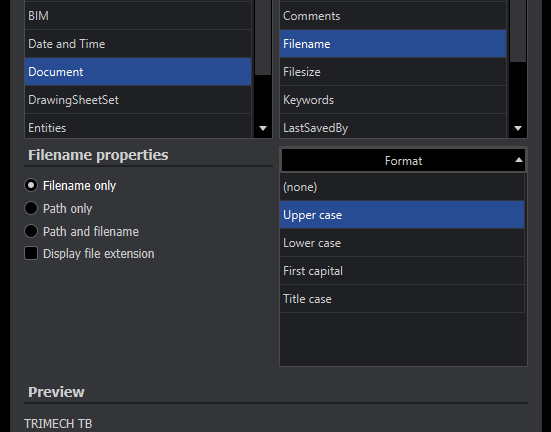
In this way, information can be automatically populated to a drawing, whose title block is shown above. The Field dialog box shown below was used to make sure the filename, without the path or extension, was shown in uppercase in the title block.

DraftSight’s Field dialog box
The date section of the title block was filled in by a similar field, showing the last saved date in M/D/YY format. You can sort fields by category to make them easier to find or browse a list of all of them. Choose among the available options to determine how the data will be displayed.
If you use the FIELD command by itself, it will create a new note. You can also add fields to existing Notes, SimpleNotes, BlockAttributes, and Tables by clicking the Insert Field button in the appropriate editor.
How to Use DIESEL Expressions
Direct Interpretively Evaluated String Expression Language, or DIESEL for short, is a new addition to DraftSight Professional, Premium, Enterprise, Enterprise Plus, and Mechanical 2026. DIESEL expressions are a form of macro language.
The code can combine string inputs to produce various outputs such as text in menus, status bar entries, and custom commands. It can pull system variables, toggle menus, and drive updates. These are similar to customizing with LISP routines, but DIESEL expressions are embedded in the drawing and do not require separate files to operate as LISP does.

DraftSight DIESEL expression to get file path
Our example title block started out with an ordinary note just below the lower right corner. Editing that text and adding a field linked to the DIESEL expression $(getvar,dwgprefix) causes the text to automatically update to always show the actual file path.
Extending DraftSight Title Blocks for Templating
We now have a single title block that can be inserted on countless drawings. The title, designer, revision, size, and scale are all block attributes that are customizable by the user. The date and number cells are also blocks, but are linked to fields that will automatically populate without user input.
A SimpleNote below the lower right corner automatically shows where the file is stored, thanks to the newly added DIESEL expressions in DraftSight 2026.

A templated DraftSight title block using multiple input methods
Leveraging Automation in DraftSight 2026
Automation tools are fantastic time-savers, especially when compared to the old methods of creating drawings from scratch. They also help reduce errors from typos and provide a more consistent look for our drawings. And yet, a lot of people are still just exploding their blocks and editing dumb text.
If you’re still exploding blocks and editing dumb text, it’s time to use the automation tools built into DraftSight 2026. Take a little time to set up your blocks right and let DraftSight do a lot of your future work for you.
To learn more about DraftSight 2026, read our article here.
Berita Terkini
Berita Terbaru
Daftar Terbaru
News
Berita Terbaru
Flash News
RuangJP
Pemilu
Berita Terkini
Prediksi Bola
Technology
Otomotif
Berita Terbaru
Teknologi
Berita terkini
Berita Pemilu
Berita Teknologi
Hiburan
master Slote
Berita Terkini
Pendidikan
Resep
Cek Ongkir Cargo
Togel Deposit Pulsa
Daftar Judi Slot Online Terpercaya
Slot yang lagi gacor
