If you’re working with SOLIDWORKS PDM and encounter the warning message “Could not read reactor table version”, you’re not alone.
Fortunately, there’s a straightforward way to resolve this and get your SOLIDWORKS PDM vault running properly.
What Causes the “Could not read reactor table version” Error?
This issue typically arises when a client workstation has an older version of the add-in loaded in memory. Commonly, SOLIDWORKS PDM DLLs are unable to properly load, leading to an error.
When this happens, it can prevent the current version from loading properly.
Step-by-Step Guide
1. Close All Open Applications
Before making any changes, ensure that all applications are closed. If SOLIDWORKS PDM is active in the system tray, right-click the icon and exit the application.
 Exiting SOLIDWORKS PDM
2. End the explorer.exe Windows Process
Open Windows Task Manager, locate the explorer.exe process, and end it. This will temporarily close your desktop and taskbar, but they will reappear when the process restarts.

Ending the explorer.exe process
3. Restart explorer.exe
To bring back the taskbar and your desktop, the process needs to be restarted. This refreshes the Windows shell and clears any lingering memory of the old add-in.
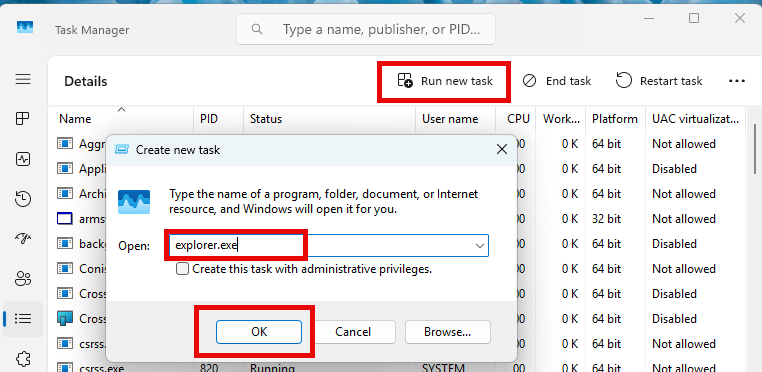
To restart explorer.exe:
- Open the Windows Task Manager.
- Navigate to File > Run new task.
- Type “explorer.exe”.
- Click OK.

Starting a new Windows process
4. Delete Old Add-In Folders
SOLIDWORKS PDM stores its add-ins inside the users’ application data folders. They are typically located in C:\Users\[USERPROFILE]\AppData\Local\SOLIDWORKS\SOLIDWORKS PDM\Plugins\[VAULTNAME].

Removing old add-in folders
You will need to delete all the folders in this location to ensure outdated add-ins are removed. The folders have names that consist of 31 characters separated by hyphens.
5. Reopen the File Vault View
Open File Explorer and browse into the file vault view. This action prompts the client computer to retrieve the latest add-ins from the archive server.
Important Note for Multiple Vaults
If your workstation has multiple file vault views, each vault might contain different versions of the same add-in.
Ensure all vaults on the workstation have the same version of the add-in loaded. Otherwise, an older version might load from a different vault, causing compatibility issues.
Fixing SOLIDWORKS PDM Error Messages
The SOLIDWORKS PDM “Could not read reactor table version” warning is a common but easily fixable issue. By following the steps above, you can ensure that your system loads the correct add-in version and maintains smooth operation across all vaults.
If you continue to experience SOLIDWORKS PDM errors, report a problem to our Technical Support team here.
PakarPBN
A Private Blog Network (PBN) is a collection of websites that are controlled by a single individual or organization and used primarily to build backlinks to a “money site” in order to influence its ranking in search engines such as Google. The core idea behind a PBN is based on the importance of backlinks in Google’s ranking algorithm. Since Google views backlinks as signals of authority and trust, some website owners attempt to artificially create these signals through a controlled network of sites.
In a typical PBN setup, the owner acquires expired or aged domains that already have existing authority, backlinks, and history. These domains are rebuilt with new content and hosted separately, often using different IP addresses, hosting providers, themes, and ownership details to make them appear unrelated. Within the content published on these sites, links are strategically placed that point to the main website the owner wants to rank higher. By doing this, the owner attempts to pass link equity (also known as “link juice”) from the PBN sites to the target website.
The purpose of a PBN is to give the impression that the target website is naturally earning links from multiple independent sources. If done effectively, this can temporarily improve keyword rankings, increase organic visibility, and drive more traffic from search results.
