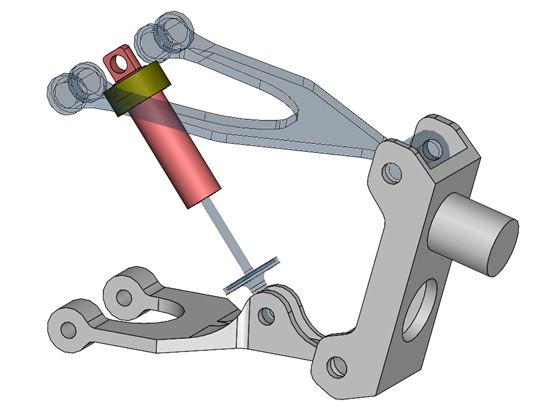
SOLIDWORKS provides precise control over geometry visibility at any moment by allowing users to hide and show items in the SOLIDWORKS Feature Tree.
This makes it easy to focus on specific features or details within a multibody part or assembly. By selectively controlling the visible bodies in a design, users can reduce visual clutter and improve clarity. This can be done in a few ways, as can be seen in this article.
Methods to Hide, Show, and Isolate
Hiding, showing, and isolating bodies or parts in SOLIDWORKS can be done with a few different methods. Below are deeper dives into three methods users can use to turn a view of a body on or off. These methods include using the hide/show selections, the feature tree flyout menu, and the isolate command.
Hide and Show Bodies in SOLIDWORKS
Users can hide or show bodies in either the graphics window or through the design tree. Right-clicking on a component in the graphics window or design tree will display a contextual toolbar from which users can choose to hide or show any selected bodies.
 Hiding components through a right click on a part in an assembly
A more streamlined method for hiding and showing bodies is using the tab key on your keyboard. When hovering the mouse over a body in the graphics view, press the tab key to hide the body. Holding the tab key and dragging the mouse across the graphics screen will hide all the bodies that the mouse comes in contact with.

Hidden items shown as transparent in a SOLIDWORKS assembly
To bring bodies back, hold shift and push tab while hovering the mouse over the hidden body. To see all hidden bodies, users can hold control and shift, then push and hold tab with control and shift still enabled. This would be a good way to make sure nothing accidentally remains hidden or to reference hidden components quickly.
Feature Tree Flyout Menu
Left-clicking on the arrow to the right of the Feature Tree exposes additional properties related to the display. This works in both assemblies and parts. For assemblies, the display properties are for the parts in the assembly. In parts, the display properties are for the features within the part.

Expanding the Flyout Feature Tree
The display properties in the feature tree flyout menu allow users to hide and show components, change display styles, modify appearances, or make items transparent. Hiding and showing parts at an assembly level has clear advantages, but what about with features at a part level? Users can make features transparent and apply appearances to get a better idea of which faces are being impacted by a feature.

Changing appearances of faces and features
Isolate Bodies
Another way users can manipulate the component display is with the isolate command. After pre-selecting multiple bodies in an assembly, right-click and select Isolate or go to View > Modify > Isolate.
Isolated views can easily be saved as a display state. Once multiple display states exist, users can right-click the arrow next to the icons of the feature display tree to quickly toggle between display states.

Isolating bodies from the SOLIDWORKS Feature Tree
Make sure to understand when to use display states versus configurations for maximum efficiency. To isolate in a part file, there must be more than one body in the solid bodies folder.
Time Saving SOLIDWORKS Workflows
The methods discussed above are fast and easy ways to hide or show components in a part or assembly document. These allow users to seamlessly draw attention to specific areas of a design when needed.
As a result, users can minimize confusion and mistakes that can occur when observing a design. Hiding, showing, and isolating bodies in SOLIDWORKS does not take much effort to set up.
To learn more SOLIDWORKS tips and tricks, subscribe to our bi-weekly Tech Tips Newsletter here.
Berita Terkini
Berita Terbaru
Daftar Terbaru
News
Berita Terbaru
Flash News
RuangJP
Pemilu
Berita Terkini
Prediksi Bola
Technology
Otomotif
Berita Terbaru
Teknologi
Berita terkini
Berita Pemilu
Berita Teknologi
Hiburan
master Slote
Berita Terkini
Pendidikan
Resep
Cek Ongkir Cargo
Togel Deposit Pulsa
Daftar Judi Slot Online Terpercaya
Slot yang lagi gacor
