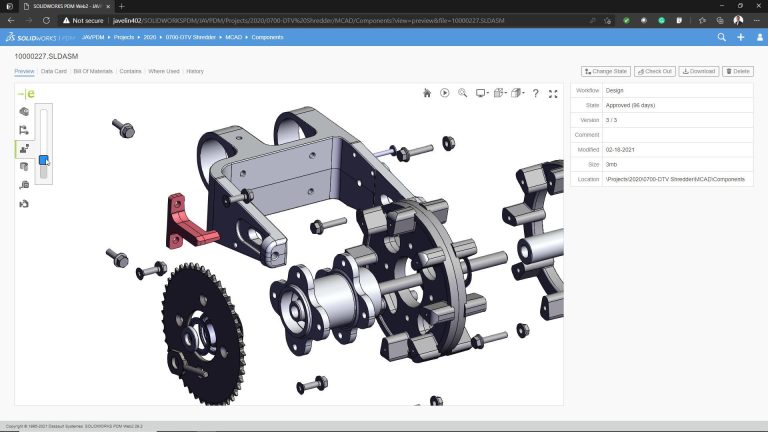
SOLIDWORKS PDM Web2 enables teams to have browser-based access to their file vault from any internet-connected device. While not a perfect replacement for the traditional SOLIDWORKS PDM client, it provides robust access for distributed teams.
This essential guide walks you through the core steps to configure SOLIDWORKS PDM Web2 and details the requirements for server setup.
To configure SOLIDWORKS PDM Web2, the steps are broken up as follows:
- Installing the software components
- Configuring SOLIDWORKS PDM Web2
- Configuring Microsoft IIS
Installing the Software Components
Before configuration, you need to ensure you have a few key pieces of software installed. Most importantly, you need SOLIDWORKS PDM and Microsoft IIS installed before proceeding.
Before configuring SOLIDWORKS PDM Web2, you are required to have:
- Microsoft .NET 4
- Microsoft Internet Information Services (IIS) 7 or higher
- Windows Server 2016 or higher operating systems
- Microsoft Visual C++ 2013 runtime
- A SOLIDWORKS PDM Client is installed, running at least a contributor license.
Installing Microsoft IIS
IIS, or Microsoft Internet Information Services, is an extensible web server developed by Microsoft. SOLIDWORKS PDM Web2 relies on this platform for its functionality.
The steps to install Microsoft IIS vary based on the operating system.
Windows 11
- In Windows, navigate to Control Panel > Programs > Programs and Features > Turn Windows features on or off.
 Accessing Windows features
 - In the dialog box, turn on Internet Information Services.
- Under Web Management Tools, turn on IIS Management Console.
 Activating the IIS Management Console
 - Under World Wide Web Services, expand Application Development Features and select the following:
- .NET Extensibility 4.5
- ASP.NET 4.5
- ISAPI Extensions
- ISAPI Filters
- Server-Side Includes
- Under World Wide Web Services, expand Common HTTP Features and select the following:
- Static Content
- Default Document
- Directory Browsing
- HTTP Errors
- Under World Wide Web Services, expand Health and Diagnostics and select the following:
- Under World Wide Web Services, expand Performance Features and select the following:
- Static Content Compression
- Under World Wide Web Services, expand Security and select the following:
- Request Filtering
 Turning on other IIS features
- Request Filtering
Windows Server 2019
- On the Windows taskbar, click the Server Manager button.
- On the Start screen, click Server Manager.
- Select Manage > Add Roles and Features.
- On the Server Roles page, select Web Server (IIS) and click Next. If prompted, add the IIS Management Console feature.
- On the Features page, select .NET Framework 4.6 or later and ASP.NET 4.6 or later. If the file vault for Web2 has custom API add-ins compiled with .NET 2.0 or .NET 3.5, also select .NET Framework 3.5.
- On the Web Server Role (IIS) > Role Services page, expand Application Development Features and select the following:
- .NET Extensibility 4.5
- ASP.NET 4.5
- ISAPI Extensions
- ISAPI Filters
- Server-Side Includes
- On the Web Server Role (IIS) > Role Services page, expand Common HTTP Features and select the following:
- Static Content
- Default Document
- Directory Browsing
- HTTP Errors
- On the Web Server Role (IIS) > Role Services page, expand Health and Diagnostics and select the following:
- On the Web Server Role (IIS) > Role Services page, expand Performance Features and select the following:
- Static Content Compression
- On the Web Server Role (IIS) > Role Services page, expand Security and select the following:
- Click Next and then Install.
Installing SOLIDWORKS PDM Web2
- Log on to the IIS system as a user with local administrative rights.
- Browse to the SOLIDWORKS installation media.
- In the SWPDMServer folder, run \SWPDMServer\setup.exe.
 Running the SOLIDWORKS setup.exe
 - Follow the instructions on the installation screens until you get to the SOLIDWORKS Product Selection.
- Under the SOLIDWORKS PDM Server section, click on Change.
 Changing the installed SOLIDWORKS PDM products
 - Ensure that the Web2 Server and Client are selected.
 Installing the SOLIDWORKS PDM Web2 Server
 - On the Ready to Install the Program screen, click Install.
- On the InstallShield Wizard Completed screen, click Finish.
The SOLIDWORKS PDM Web2 server requires a client to be installed on the same machine. Read our dedicated article to create a local vault view for your SOLIDWORKS PDM vault.
Configuring SOLIDWORKS PDM Web2
There are two methods to configure SOLIDWORKS PDM Web2. The first method uses the Microsoft IIS Manager, and the second is done by editing a Web.config file directly.
Editing the Web.config File
Editing the Web.config file is a straightforward method for configuring the SOLIDWORKS PDM Web2 server components. In this method, you must update the VaultName and VisibleVaults keys within the file using any XML editing application.

Accessing the Web.config file
To use this method:
- Add the primary vault name that you want to access via Web2 to the VaultName key.
<add key=”VaultName” value=”PDM_Pro_Vault”> - Optional: To access multiple vaults, enter their names separated by | for VisibleVaults.
<add key=”VisibleVaults” value=”PDM_Test|PDM_Pro_Vault” />

Adding keys to the Web.config file
Editing the Web.config File in the IIS Manager
Editing the Web.config file using the IIS Manager helps to configure server components. In this method, you are updating key values within IIS instead of directly editing the XML syntax of the files.
To use this method:
- On the server, open IIS Manager from the installed Windows programs.
 Running IIS Manager as administrator
 - In the IIS Manager, expand Sites until SOLIDWORKSPDM shows up.
- Select SOLIDWORKSPDM and double-click on the Configuration Editor.
 Opening the Configuration Editor
 - In the Configuration Editor, select the “appSettings” section from the drop-down list.
 Accessing the appSettings for IIS
 - Select the rows VaultName and VisibleVaults(if multiple vaults), and then edit the values as shown in the image below.
 Editing the SOLIDWORKS PDM IIS keys
 - Close the editor by clicking on the X on the top right of the editor’s window.
- Click on Apply as shown below.
 Applying changes in IIS
Configuring Microsoft IIS
- Open the Internet Information Services (IIS) Manager.
- In the left pane, expand the computer name, select Application Pools
 Showing IIS Application Pools
 - Right-click SOLIDWORKS PDM Web2 and open Advanced Settings.
 Opening the Advanced Settings
 - Ensure that Load User Profile is set to True.
 Setting Load User Profile to True
 - In the Advanced Settings dialog box, click the ellipses next to set the Identity.
 Setting the Microsoft IIS Identity for Web2
 - Select Custom account, and click Set.
 Setting an account for the Application Pool Identity
 - In the Set Credentials dialog box, type Windows credentials of the user who is currently logged into Windows or a user who has logged into the IIS system, browsed the file vault, and clicked a folder at least once.
- Click OK until the prompts are closed.
Key considerations for the IIS configuration include:
- If the password for this user changes, the application pool stops working until the user updates the password.
- Ensure that the custom account user is a member of the IIS_IUSRS group.
- Ensure that the custom account user is a member of the local Administrators group.
- When you upgrade the SOLIDWORKS PDM Web2 server, you must configure Microsoft IIS to modify the application pool.
Expert Help to Configure SOLIDWORKS PDM Web2
The steps above outline everything you need to properly configure SOLIDWORKS PDM Web2 and allow browser-based access to your file vault. Once configured, begin testing your Web2 configuration and ensure that everyone who needs access is able to.
What happens if you don’t have time to configure the server components but still need external, web-based access to the SOLIDWORKS PDM? Let our team of experts configure SOLIDWORKS PDM Web2 for you. We have decades of experience helping clients set up, test, and widely deploy SOLIDWORKS PDM Web2 so their teams have access to data wherever they are.
To get started with a SOLIDWORKS PDM Web2 implementation, fill out the form here.
PakarPBN
A Private Blog Network (PBN) is a collection of websites that are controlled by a single individual or organization and used primarily to build backlinks to a “money site” in order to influence its ranking in search engines such as Google. The core idea behind a PBN is based on the importance of backlinks in Google’s ranking algorithm. Since Google views backlinks as signals of authority and trust, some website owners attempt to artificially create these signals through a controlled network of sites.
In a typical PBN setup, the owner acquires expired or aged domains that already have existing authority, backlinks, and history. These domains are rebuilt with new content and hosted separately, often using different IP addresses, hosting providers, themes, and ownership details to make them appear unrelated. Within the content published on these sites, links are strategically placed that point to the main website the owner wants to rank higher. By doing this, the owner attempts to pass link equity (also known as “link juice”) from the PBN sites to the target website.
The purpose of a PBN is to give the impression that the target website is naturally earning links from multiple independent sources. If done effectively, this can temporarily improve keyword rankings, increase organic visibility, and drive more traffic from search results.
