When working with SOLIDWORKS PDM Professional, encountering license errors such as “Failed to obtain a license for SOLIDWORKS PDM” can be frustrating and confusing. These errors often stem from misunderstandings about how SOLIDWORKS PDM licenses work.
In this article, we’ll explore the most common license errors for SOLIDWORKS PDM clients, why they occur, and how to resolve them.
How CAD and PDM Licenses Differ
Unlike SOLIDWORKS CAD licenses, PDM licenses are only network licenses and activated through the SolidNetWork License Manager (SNL) Server on your license server and managed exclusively through the SOLIDWORKS PDM Administration tool, which can be accessed from any machine that has the PDM Client installed.
There are no standalone PDM licenses, so troubleshooting requires a network-focused approach.
Fixing “Failed to Obtain License” Error Messages
The specific error message received can give insight into the root cause of the problem. As a result, each cause will have its own set of troubleshooting steps to successfully solve.
The error messages detailed below are listed from most to least frequent, based on real-world technical support experience.
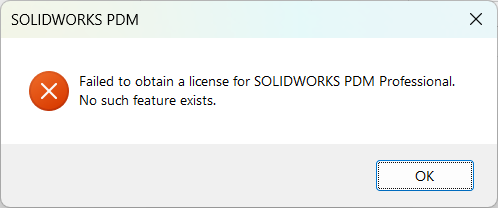
“Failed to obtain a license for SOLIDWORKS PDM Professional. No such feature exists.”
This error typically indicates that the client cannot find the correct license feature on the server.
 No such feature exists error message
Cause 1: License Server Needs Reactivation
If your license server hasn’t been reactivated recently, the license may appear invalid. This is one of the most frequent causes of this error. SOLIDWORKS licenses require annual reactivations, starting with SOLIDWORKS 2019.
To solve this error message:
Cause 2: PDM Client Still Points to Old Server
If licenses were moved to a new server but the client still references the old one, the connection will fail.
To solve this error message:
-
- Open the SOLIDWORKS PDM Administration tool.
- Navigate to License > Server List.
- Confirm the correct server is listed and update if necessary.

Updating the SOLIDWORKS PDM license server
“Failed to obtain a license for SOLIDWORKS PDM Professional. Cannot find license file.”
This error message often relates to specific client-side settings. Specfically, the option for Only use borrowed licenses (faster startup) being enabled can often cause this error. Users with SOLIDWORKS PDM 2026 Service Pack 1 shouldn’t have this problem.

Cannot find license file error message
To solve this error message:
- Start the SolidNetWork License Manager Client.
- Go to the License Borrowing tab.
- Uncheck Only use borrowed licenses (faster startup).
 Checkbox for “Only use borrowed licenses” in the License Manager
“Failed to obtain a license for SOLIDWORKS PDM Professional. Cannot connect to license server system.”
This error signals a connectivity issue between the client and the license server.

Cannot connect to license server system error message
Cause 1: Incorrect port@host Information
The default port for SolidNetWork License Manager is 27354. If this or the server name is wrong, the client cannot connect.
To solve this error message:
- Open the SOLIDWORKS PDM Administration tool.
- Navigate to License > Server List.
- Confirm the correct server is listed and update if necessary.
Cause 2: The License Server is Stopped
If the SolidNetWork License Manager service isn’t running, clients cannot obtain licenses.
To solve this error message:
- On the license server machine, open SolidNetWork License Manager Server.
- Ensure the service is started.
 Checking the SolidNetWork License Manager to see if it is started
Alternatively, you can check active Windows Services for the “SolidNetWork License Manager” and restart if needed.

Restarting the license server through Windows Services
Berita Terkini
Berita Terbaru
Daftar Terbaru
News
Berita Terbaru
Flash News
RuangJP
Pemilu
Berita Terkini
Prediksi Bola
Technology
Otomotif
Berita Terbaru
Teknologi
Berita terkini
Berita Pemilu
Berita Teknologi
Hiburan
master Slote
Berita Terkini
Pendidikan
Resep
Cek Ongkir Cargo
Togel Deposit Pulsa
Daftar Judi Slot Online Terpercaya
Slot yang lagi gacor
