SOLIDWORKS Inspection reports may have various characteristic values included, which makes it difficult to specify how many rows you need specifically when creating your custom report templates. This may lead users to format an excessive number of rows to account for the possible number of characteristic values generated.
The issue with this approach is that you may have too many empty rows in your inspection report, which may take away its professionalism. Luckily, SOLIDWORKS Inspection’s Template Editor has a footer row function that you can apply to your custom inspection report templates.
What is the Footer Row Function?
The footer row function in the SOLIDWORKS Inspection Template Editor is easy to apply and makes formatting rows simple for custom inspection report templates. By applying the function, the number of rows will increase depending on how many characteristic values are generated in SOLIDWORKS Inspection.
Applying the Footer Row Function
If you are looking into applying the footer row function to your custom inspection report templates, the following steps will walk you through it. As always, back up your existing templates in case you need to revert back to normal.
Open the SOLIDWORKS Inspection Template Editor
First, open your custom inspection report template in the Template Editor. You can access the Template Editor in SOLIDWORKS Inspection Standalone by navigating to File > Template Editor. This will open Microsoft Excel to continue editing a template.
 Launching the SOLIDWORKS Inspection Template Editor
Open an Existing SOLIDWORKS Inspection Template
If your custom inspection report template is not located in the default template location for SOLIDWORKS Inspection, you can navigate to the correct location and open your file. If you experience issues with finding your custom inspection report template for editing in the Template Editor, please ensure it has been saved as an Excel Template initially

Opening a SOLIDWORKS Inspection Template in Excel
Add a Custom Name to the Footer Row
With your custom inspection report template open in the Template Editor, click on the row header for the last row you have formatted. In the screenshot example provided below, I have formatted rows until row 26.

Selecting the footer row in the inspection report
On the Formulas tab in Excel, open the Define Name tool to launch a dialog box where you can input information. For the name, insert “IXFooterRowXXX” with the XXX referring to the footer row function in the case of multiple sheets. Since this is a single-sheet report, it will be “IXFooterRow001”.

Adding the footer row’s name in Excel
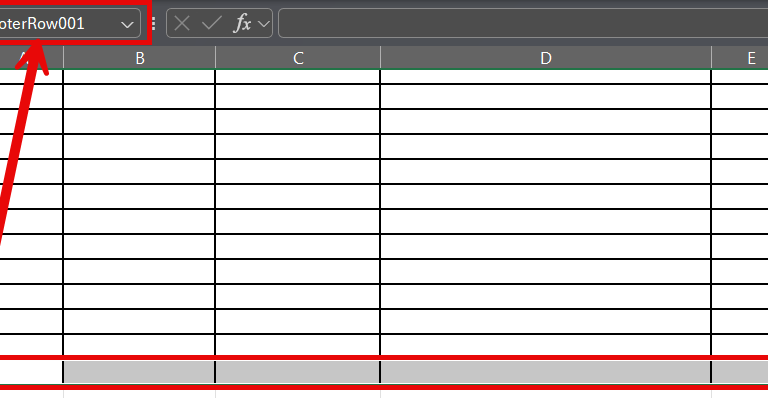
You should now see IXFooterRow001 when selecting the row in Excel. This can help you confirm if the name was applied correctly.

Verifying that the name was placed correctly
Close the Template Editor
With the footer row name applied and showing correctly when selecting the last row, you can select Finished in the SOLIDWORKS Inspection Template Editor to save the template.

Saving the SOLIDWORKS Inspection Template
Using the New Template for Inspection Reports
You can use the custom report template you created in SOLIDWORKS Inspection with the following steps:
- Open the Home tab of SOLIDWORKS Inspection.
- Select the Excel button.
- Use the green plus to add a new template.
- Navigate using Windows File Explorer to the new template and open it.

Adding templates to SOLIDWORKS Inspection
At this point, the newly created template with the footer row function will be populated in the list of available templates. Any newly created inspection reports will now account for the number of rows to include based on how many characteristic values are included.
Improving Your Quality Control Process
Automating your first article inspection reports can help reduce the amount of manual interaction and the number of mistakes made in your current process. Footer row functions are just the beginning of streamlining and improving the quality control for your team.
To learn more about adding SOLIDWORKS Inspection to your current workflow, click here.
Berita Terkini
Berita Terbaru
Daftar Terbaru
News
Berita Terbaru
Flash News
RuangJP
Pemilu
Berita Terkini
Prediksi Bola
Technology
Otomotif
Berita Terbaru
Teknologi
Berita terkini
Berita Pemilu
Berita Teknologi
Hiburan
master Slote
Berita Terkini
Pendidikan
Resep
Cek Ongkir Cargo
Togel Deposit Pulsa
Daftar Judi Slot Online Terpercaya
Slot yang lagi gacor
