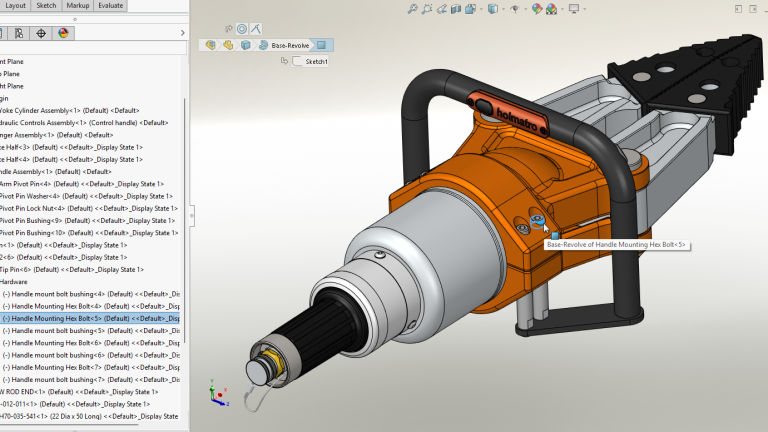
The SOLIDWORKS user interface has long been recognized as one of the best in the computer-aided design and engineering industry.
Its intelligent toolbar and panel layout, left and right-click functionality, workflow context sensitivity, and gesture interpretation are all elements that make SOLIDWORKS easy to learn and enjoyable to use.
What is the Manager Pane?
The Manager Pane is on the left side of the SOLIDWORKS user interface and contains commonly used tabs like the ConfigurationManager (configuration control), DisplayManager (appearances and decals), and PropertyManager (parameters and references). The tabs dynamically switch when appropriate for a smooth workflow.
The FeatureManager on the far-left tab shows the feature history, names, and dependencies when working with part models. With assembly models, the FeatureManager Tree also displays the assembly hierarchy and assembly features, too. We heavily use the FeatureManager Tree to select and modify components and features, initiate editing operations, and much more. Here are four easy tweaks you can leverage to work more efficiently with the FeatureManager Design Tree.
How to Collapse the FeatureManager
As a design progresses, the list of components and features in the left pane can get quite long and difficult to manage. When selecting an on-screen feature or component, SOLIDWORKS will automatically scroll the FeatureManager Tree to make that item visible in the pane. This can be helpful when finding items in the FeatureManager, but navigating the expanded hierarchy can be confusing if the item is in a folder or nested subassembly, especially after multiple selections.
 Selecting an object in the graphics window will highlight it in the FeatureManager
You can quickly shrink or collapse the tree to its top-level components and regain your bearings. Right-click anywhere in the white space pane background of the tab, select Collapse Items, and watch the tree collapse to the top component level. If you prefer keyboard shortcuts, pressing Shift + C will do the same.

Collapsing the FeatureTree with a right-click
Turning Off Auto-Scroll
It’s worth noting that in large assemblies with many components, scrolling the FeatureManager item into view can cause a delay as the tree is searched. If you find this scrolling action disruptive, it can be disabled from System Options > Feature Manager and deselect “Scroll selected item into the view.” With this option disabled, now when we pick an item in the graphics area, it does not expand the tree.
How to Filter the FeatureManager Tree
Another useful tool for navigating and searching a long FeatureManager is the Filter field at the top of the pane. Just start typing some text, and the components or features that do not match the text string are hidden in the FeatureManager display.

Filtering the tree based on a search term
Only those features and components with a name that matches the text string remain visible. This is extremely helpful for identifying particular components, finding and working with sketches, and quickly accessing specific reference geometry. By default, the features and components that do not match are also hidden in the graphics area.
Deleting the text string in the Filter field returns to the full view. If we want only the FeatureManager Tree to be filtered but not hide the components in the graphics area, that option is available by clicking the flyout on the Filter icon next to the text field.

Toggling the FeatureTree filtering behavior
How to Split the SOLIDWORKS FeatureTree
This tweak is relevant for part and assembly models and can greatly streamline your workflows. The typical process for working with configurations is as follows:
- Double-click on a configuration to activate it.
- Switch to the FeatureManager to see which components are active.
- Go back to the ConfigurationManager to change the configuration.
- Switch to the FeatureManager to see which components are active.
- Repeat as needed.
Luckily, we can split the Manager Pane in SOLIDWORKS and show FeatureManager in one pane and the ConfigurationManager in the other. Then, when you change configurations in the ConfigurationManager pane, the tree display changes in real time.

Splitting the SOLIDWORKS user interface to show two different tabs at once
To split the Manager Pane, click and drag down the horizontal bar at the top of the pane, and now two panes are stacked in the left panel. When you’re done using this function just grab the bar again and drag it up to the top, and you’re back to a single feature manager tree.
How to Change What is Shown in the FeatureManager
By default, each component in the FeatureManager shows the active configuration and display state name next to the component name. This is helpful with assemblies containing configured components and/or with multiple display states.

Opening the FeatureTree display settings
For simpler models with components having only one configuration or display state, showing this information makes the tree appear unnecessarily complicated. For those models, we have an option to affect what appears in the component node next to the name. Access this control by right-clicking at the top of the tree and selecting Tree Display > Component Names and Description.
The different options for Tree Display are:
- Do not show Configuration or Display State name if only one exists
When activated, only those components with multiple configurations or display States will display the component information. - <Secondary>
- Component Description
This will display the value from the Description custom property. - Configuration Name
This will display the name of the configuration from the ConfigurationManager. - Configuration Description
This will display the value from the Description custom property for the selected configuration.
- Component Description
- <Tertiary>
Unchecking the Display State Name box will hide all display state information from the tree.

Default settings for the Tree Display options
Enhancing SOLIDWORKS Productivity
The FeatureManager Tree is a fundamental control element in SOLIDWORKS with broad functionality. Using the tweaks in this article will enhance efficiency and advance productivity.
Being the industry-leading CAD and engineering ecosystem, SOLIDWORKS has many more tweaks, tips, and tricks to help streamline your design workflows. With over 35 years of experience, our team has plenty of time to find the most efficient methods to do almost anything in SOLIDWORKS.
To learn more time-saving SOLIDWORKS tips to cut design time, register for our webinar here.
Berita Terkini
Berita Terbaru
Daftar Terbaru
News
Berita Terbaru
Flash News
RuangJP
Pemilu
Berita Terkini
Prediksi Bola
Technology
Otomotif
Berita Terbaru
Teknologi
Berita terkini
Berita Pemilu
Berita Teknologi
Hiburan
master Slote
Berita Terkini
Pendidikan
Resep
Cek Ongkir Cargo
Togel Deposit Pulsa
Daftar Judi Slot Online Terpercaya
Slot yang lagi gacor
