DWG and DXF are widely accepted formats in the manufacturing world because they allow seamless communication between design and production teams. These formats are compatible with many CAM systems, CNC machines, and laser cutters, making them ideal for transferring precise geometry.
Converting SOLIDWORKS data into one of these 2D formats is a common workflow. In most cases, exporting directly from SOLIDWORKS will be the cleanest and most efficient way to convert this data.
Let’s review three common use cases for the DWG/DXF export:
- Exporting a 2D view from a 3D model
- Exporting a sheet metal flat pattern
- Exporting a full 2D drawing
How to Export a 2D View of a 3D Model
If you need to export the front, top, right, or other standard 2D views of a 3D model, you can follow these steps:
- Go to File and Save As.
- Choose DXF or DWG as the file type, and click Save.
- In the DXF/DWG Output PropertyManager, set the Export selection set to Annotation Views.
- In Views to Export, select the view(s) you need, such as top, front, and right.
- Click OK.
- In the DXF/DWG Cleanup window, you can select entities to be removed before the final export. You can use box selection to grab multiple entities at once or individually select them.
- Click Save to finish the export.
 DXF/DWG Cleanup window before saving
How to Export a Sheet Metal Flat Pattern
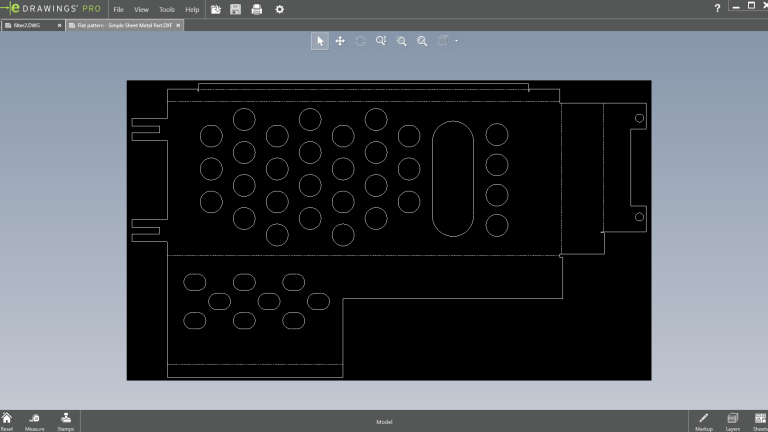
Exporting 2D sheet metal flat patterns is often a necessary step in the manufacturing workflow for processes like cutting and bending. The steps to accomplish this are outlined below:
- Go to File and Save As.
- Choose DXF or DWG as the file type, and click Save.
- In the DXF/DWG Output PropertyManager, set the Export selection set to Sheet Metal.
- Select which entities to export, such as model geometry, bend lines, sketches, and more.
- Click OK.
- In the DXF/DWG Cleanup window, you can select entities to be removed before the final export. You can use box selection to grab multiple entities at once or individually select them.
- Click Save to finish the export.

eDrawings viewer showing DXF export of a sheet metal flat pattern
How to Export a SOLIDWORKS 2D Drawing
In addition to exporting views directly from a 3D model, you may also want to export a 2D drawing file from SOLIDWORKS out to DXF or DWG format. This is especially useful when your drawing includes annotations, dimensions, title blocks, or other manufacturing details that aren’t present in the model itself.
Exporting from a drawing file allows you to preserve the layout and presentation of your documentation, making it ideal for sharing with vendors, clients, or team members who use 2D CAD tools like AutoCAD or DraftSight. The steps to do this are very simple and can be found below:
- Open your drawing file in SOLIDWORKS.
- Go to File and Save As.
- Choose DXF or DWG as the file type, and click Save.
Additional DXF/DWG Export Options
For more control over your DXF/DWG exports, SOLIDWORKS offers additional settings under Tools>Options>System Options>Export>File Format: DXF/DWG.

SOLIDWORKS System Options for DXF/DWG Export
You can set options relating to version compatibility, custom mapping of entities and layers, scaling output, spline handling, and how multi-sheet drawing files are exported. These settings help ensure your exported files meet specific requirements for downstream applications or vendor preferences.
Viewing Exported Drawings with eDrawings
Once your DXF or DWG is exported, you may want to review the output before sharing it with others or sending it to production. A quick way to review the exported files is with eDrawings, a free, lightweight CAD document viewer from SOLIDWORKS. DXF and DWG files can be opened directly in eDrawings without undergoing any further conversion. From there you can zoom, pan, and measure entities to ensure accuracy and clarity before sharing the file.
To learn more about using DXFs and DWG files in your engineering workflows, take Draftsight for a test drive here.
Cloud Software
Berita Olahraga
Lowongan Kerja
Berita Terkini
Berita Terbaru
Berita Teknologi
Seputar Teknologi
Berita Politik
Resep Masakan
Pendidikan
