The SOLIDWORKS PDM Admin user should automatically have the highest level of permissions in the vault to allow them to do anything. However, we sometimes see that clients modify the user permissions, which can lead to issues down the line for vault administration.
With just a few quick modifications, you can reset your Admin user’s permissions to default and have everything return to normal.
Resetting the User to Default
The first of the two changes will be to reset the SOLIDWORKS PDM Admin user to default settings. Follow the steps listed below to have the permissions reset.
- Open the SOLIDWORKS PDM Administration tool.
 Opening the SOLIDWORKS PDM Administration tool
 - Log in to the vault where you want to reset the administrative user permissions. It is recommended to log in as the Admin user to have the highest level of permissions.
- Navigate to the Users and Groups Management section, expand Users, and then double-click on the Admin user.
 Accessing Users and Groups Management
 - Verify the Admin user has not been added to any groups.
 Verifying the Admin is not added to groups
 - Under the Folder Permissions section, remove any specific folder paths that may be assigned to the Admin. The top-level folder permission should be set by default, and having other folders listed may override it. Select the folder and click the Remove button to clear them out.
 Removing extra folder permissions
 - On the Permissions per Folder tab, select the top-level of the vault. Check off every Folder Permission to ensure that the Admin user has full control over the root vault and any child folders.
 Applying all Folder Permissions
 - Switch to the State Permissions section. For each SOLIDWORKS PDM workflow state, make sure the Admin user has the permissions listed in the image below. Repeat this for every workflow in the vault.
 Adjusting the workflow state permissions
 - Click OK to save these changes.
Showing All Files to the SOLIDWORKS PDM Admin
The second required change to reset the user profile back to default is to make sure that the Admin user can see all the files in the vault. To do so, follow the steps below.
- Open the SOLIDWORKS PDM Administration tool.
Opening the SOLIDWORKS PDM Administration tool
- Log in to the vault where you want to reset the administrative user permissions. It is recommended to log in as the Admin user to have the highest level of permissions.
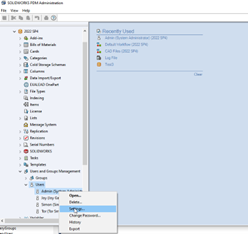
- Navigate to the Users and Groups Management section, expand Users, and then right-click on the Admin user.
 Accessing the SOLIDWORKS PDM user settings
 - Select Settings from the flyout menu.
- Under File Explorer, verify that Show all files is selected.
 Verifying that all files will be shown
 - Click OK to save the changes.
With these steps, you can quickly restore the default settings for your SOLIDWORKS PDM Admin user, ensuring smooth and secure management of your system. At this point, you can log out of the SOLIDWORKS PDM vault and then back in as the Admin user. You should be able to see all files that were previously unavailable and control everything as an Admin should
Still having issues with your Admin user permissions? Contact our Technical Support team here.
Cloud Software
Berita Olahraga
Lowongan Kerja
Berita Terkini
Berita Terbaru
Berita Teknologi
Seputar Teknologi
Berita Politik
Resep Masakan
Pendidikan
