Data loss in any tool can mean hours of lost productivity and rework. That’s why having a solid, working SOLIDWORKS electrical backup strategy is critical for every design team using the platform.
From individual project snapshots to full environment archives, there are multiple ways to protect and recover your data, most of which are quick and simple to perform and set up. In this guide and in the associated webinar, we’ll explore best practices to ensure your SOLIDWORKS Electrical projects are safe, secure, and restorable.
Project-Level Electrical Backups
The first layer of data protection in SOLIDWORKS Electrical comes at the project level. Two key features, called snapshots and archives, help capture progress and create restore points throughout the project lifecycle.
Snapshots function like save points, allowing you to capture the state of your project at a particular moment in time. They’re especially useful if you use the internal revision tool in SOLIDWORKS Electrical.
Although taking snapshots is optional, the software prompts you to create one whenever you generate a new revision. These snapshots live within the project itself and can be restored from the snapshot manager if something goes wrong. You can also include them when archiving a project for a more comprehensive backup.

Access the Snapshot Manager in the Process tab of SOLIDWORKS Electrical
Project archives, on the other hand, create a full backup that is portable and external to the application. When you archive a project, all associated data (symbols, title blocks, document settings, and snapshots) is zipped up into a single file. This makes it easy to share, move, or store your projects in a secure location.
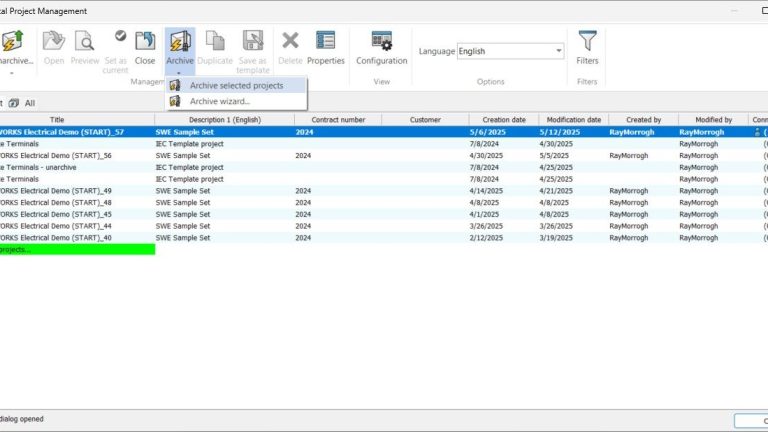
Compared to snapshots, archiving offers a more robust electrical backup solution because the files can be preserved independently from your active environment. Project archiving can happen directly in the Electrical Project Management interface by selecting the project and clicking “Archive” to run through the dialogue for selecting content to preserve.

Archiving an entire project for a SOLIDWORKS Electrical backup
Full Environment Backups
Protecting a single project is important, but what about all your projects, templates, libraries, and user settings? That’s where environment archiving comes in. The SOLIDWORKS Electrical environment includes your Microsoft SQL database contents and your local data folder, both of which store critical components of your design workflow.
Creating an environment archive backs up the entire electrical ecosystem, including your current projects, custom libraries, title blocks, templates, and document settings. This is a key practice for ensuring that your complete design infrastructure can be restored in case of a system failure, hardware replacement, or migration to a new machine. Depending on how often your environment changes, you should perform this kind of electrical backup on a weekly or monthly basis by selecting “Archive Environment” on the Home tab of SOLIDWORKS Electrical. To make sure you never forget to perform those archives, you can also set your machine up to do this automatically.

Initiating an archive in SOLIDWORKS Electrical
Automating Electrical Backups
Manual backups are helpful, but automated backups ensure consistency and peace of mind. With SOLIDWORKS Electrical 2021 and later, you can automate your environment backup using an executable called ewenvironmentarchiver.exe, found in your installation folder for SOLIDWORKS Electrical.
Once launched, the archiver allows you to select an output folder and choose which parts of the environment to include. You’ll need to take a backup using this program first before setting up the task in Windows. To automate the process, use Windows Task Scheduler, a built-in administrative tool.

Using the Windows Task Scheduler for electrical backups
By creating a basic task and setting the action to “Start a Program,” you can point to the archiver and define how often the electrical backup should run. This makes electrical backups part of your standard IT routine without requiring daily manual input.
Integrating SOLIDWORKS Electrical with PDM
Another advanced way to enhance your data protection strategy is by integrating SOLIDWORKS Electrical with SOLIDWORKS PDM. This integration offers several benefits for electrical backup and project control. It allows you to use PDM project templates tailored to Electrical workflows, ensuring consistency in project creation and library synchronization.
With PDM, you also gain enhanced BOM management for electrical components, along with improved file security, version control, and workflow automation. Setting up the integration involves more than installation, as it requires proper configuration of data cards, workflows, and variable mappings between Electrical and PDM. For teams looking to optimize both performance and protection, this integrated approach is highly recommended and something we can provide to you through our PDM and Electrical Integration Service.

SOLIDWORKS Electrical components in SOLIDWORKS PDM
In the world of electrical design, data is your most valuable asset. A thoughtful electrical backup strategy in SOLIDWORKS Electrical helps safeguard that asset, whether you’re preserving a single project or your entire design environment. By using snapshots, project archives, environment backups, and PDM integration, you can rest easy knowing that your work is protected against the unexpected. If you’d like help setting up your electrical backup system or are curious about integrating PDM with Electrical, reach out to our team at TriMech.
Cloud Software
Berita Olahraga
Lowongan Kerja
Berita Terkini
Berita Terbaru
Berita Teknologi
Seputar Teknologi
Berita Politik
Resep Masakan
Pendidikan
