The 3DEXPERIENCE platform provides many benefits, including the ability to manage your files on the cloud for easy access anywhere, anytime. A local Windows Explorer folder is defined as a cache directory to load SOLIDWORKS models.
These local files are uploaded to the 3DEXPERIENCE servers on demand for cloud storage and collaboration. Managing the local 3DEXPERIENCE cache is a key aspect of ensuring designs are up to date and reducing disk usage.
Where is the 3DEXPERIENCE Cache?
The 3DEXPERIENCE cache is typically found inside SOLIDWORKS and as a folder in Windows Explorer. Managing the cache manually through Windows Explorer is not recommended; however, these are the default folder locations.
- SOLIDWORKS Desktop using the 3DEXPERIENCE add-in:
C:\3DEXPERIENCE - SOLIDWORKS Connected:
C:\Users\<username>\AppData\Local\DassaultSystemes\3DEXPERIENCE
Accessing the 3DEXPERIENCE Cache within SOLIDWORKS
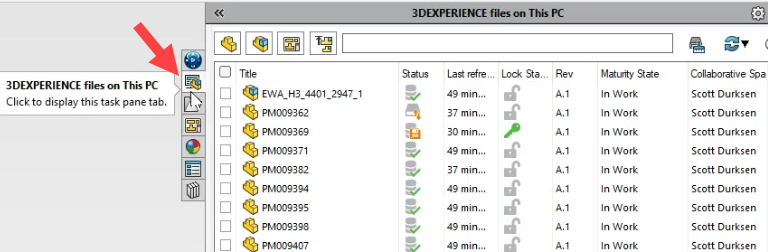
Within SOLIDWORKS and SOLIDWORKS Connected, enabling the “3DEXPERIENCE Files on This PC” add-in will provide a Task Pane tab to manage the cached files. The tab includes a list of cached files with key information such as Status, Lock Status, and Maturity State.

3DEXPERIENCE cache showing in the Task Pane
The Refresh view command will update the local cache for any files currently selected in the Task Pane. The Refresh from Server command will check for changes between the cache and the 3DEXPERIENCE server, such as if another user had modified a file since it was last retrieved to the local cache. A new session of SOLIDWORKS will automatically refresh the files in the background.

Refreshing the local cache
Local Cache Status Icons
The Status icons provide information on the state of the local cache version compared to the server version. These can help you identify whether you have the latest version of a file or if a newer one exists. The icons can also help you determine whether you need to refresh the 3DEXPERIENCE cache, save a local file to 3DEXPERIENCE, or if there is nothing to be updated. The most commonly seen Status icons are shown below. It is important to remember that reloading a file from the server will overwrite your local copy and any modifications will be lost.

3DEXPERIENCE file status icons
Clearing the 3DEXPERIENCE Cache
The local cache should be cleaned periodically to avoid excessive disk usage. This can also be performed to ensure the local cache pulls the latest version from the server when you open a file. To clear the local cache, select specific files or click the top left box to select all. Right-click and select “Delete from this PC” to delete the files from the cache folder in Windows Explorer.
Using the different file filters in the Task Pane can be used to streamline deletion, while the search box can let you find specific files in the cache. It is important to verify that all necessary files are saved and in sync with the 3DEXPERIENCE platform before clearing the local cache.

Deleting files from the 3DEXPERIENCE cache
The Clean Up command has automation to remove unchanged files after a specified timeframe. Any files referenced in a cached assembly, along with files that are locked or locally modified, will not be deleted.
While it only removes unchanged files, opening an assembly that references the removed components in the future will download a new copy to the cache. The default timeframe is one week; however, if internet performance or bandwidth is of concern and hard drive space is sufficient, consider changing to a longer timeframe.

Using the Clean Up command
Looking to get more out of your 3DEXPERIENCE platform tenant? Register for an upcoming training class here.
Cloud Software
Berita Olahraga
Lowongan Kerja
Berita Terkini
Berita Terbaru
Berita Teknologi
Seputar Teknologi
Berita Politik
Resep Masakan
Pendidikan
