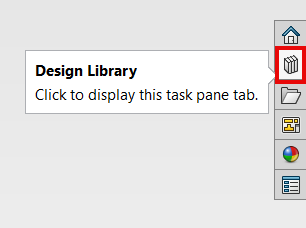
SOLIDWORKS includes libraries for hydraulic and electrical schematic drawing blocks, which can be downloaded for use in your designs. Within the Design Library tab in the task pane, SOLIDWORKS Content is available for users.
The downloadable SOLIDWORKS Content includes additional resources for blocks, CircuitWorks, routing, and weldments, which can be helpful if you require these aspects in your designs. This article will primarily focus on downloading block libraries from SOLIDWORKS Content, adding them to your Design Library, and utilizing them in SOLIDWORKS for your future designs.
How to Download Drawing Blocks through SOLIDWORKS
The Hydraulic and Electrical schematic block libraries can be downloaded from SOLIDWORKS Content directly within SOLIDWORKS SOLIDWORKS. Steps to access SOLIDWORKS Content are listed below for reference:
- Select Design Library in the Task Pane.
- Select the drop-down arrow beside SOLIDWORKS Content and select “Blocks”.
 Selecting the Blocks library
 - The Electrical and Hydraulic ZIP files are available below in the Design Library view. To download their respective ZIP files, hold down the “Control” key and click on either “Electrical” or “Hydraulic”.
 Downloading a drawing block library
 - A Windows File Explorer window will pop up, prompting you to select a folder to download the ZIP file to. The default SOLIDWORKS Design Library file location is C:\ProgramData\SOLIDWORKS\SOLIDWORKS 20XX\Design Library.
- With the ZIP files downloaded, you can now extract the files by right-clicking on the ZIP files and selecting “Extract All…”.
 Extracting the downloaded library
Add the Block folder location to the Design Library in SOLIDWORKS
If the drawing blocks were downloaded and extracted in a location other than the default, you will need to tell SOLIDWORKS where to look for them. There are two different methods to accomplish this: one through the SOLIDWORKS File Location settings or through the Task Pane.
Option 1: Add the Design Library Blocks Folder through SOLIDWORKS File Locations
- Open the SOLIDWORKS System Options.
- Go to the File Locations section.
- Using the drop-down, navigate to the Design Library.
- Select Add.
- Navigate to the correct location housing the files.
- Accept the prompt.

Adding additional file locations to SOLIDWORKS
Option 2: Add the Design Library Blocks Folder through the Task Pane
- Select Design Library in the Task Pane
- Select the “Add File Location” icon.
- Navigate to the correct Design Library folder location.
- Click OK.

Adding a new library to the Design Library
If the Design Library folder does not appear in the Design Library Task Pane after assigning the folder location, you can select the Refresh icon to update the contents. Selecting the refresh icon will refresh the view of the Design Library tab.

Refreshing the SOLIDWORKS Content library
Using the Drawing Block Libraries
With the Design Library folder location assigned in SOLIDWORKS, you can drag and drop blocks that were downloaded from SOLIDWORKS Content into your designs. Based on the steps listed above, you can navigate to the newly downloaded blocks by selecting the Design Library icon in the SOLIDWORKS Task Pane. From here, you can navigate further in the blocks library to find the downloaded content.
The Design Library view should now display a preview of the blocks available for use. Place your cursor on the block you wish to insert into your design, click, and drag the block into the graphics area. Once you drop the block into your design, you are able to continually place it in multiple areas by clicking to place.

Dragging drawing blocks from the Task Pane
To learn more about using the SOLIDWORKS Design Library, read our other article here.
Cloud Software
Berita Olahraga
Lowongan Kerja
Berita Terkini
Berita Terbaru
Berita Teknologi
Seputar Teknologi
Berita Politik
Resep Masakan
Pendidikan
