When using SOLIDWORKS Electrical 2D cabinet layouts, you may find yourself in a situation where no components are listed, such as in the screenshot shown below.
As you can see, the 2D cabinet layout itself is listed, but there are no components for the layout due to location assignment. Let’s take a look at how to properly assign components to locations so that they show up under the 2D cabinet tab in our SOLIDWORKS Electrical Cabinet Layout tree.

No components in the SOLIDWORKS Electrical 2D Cabinet Layout?!
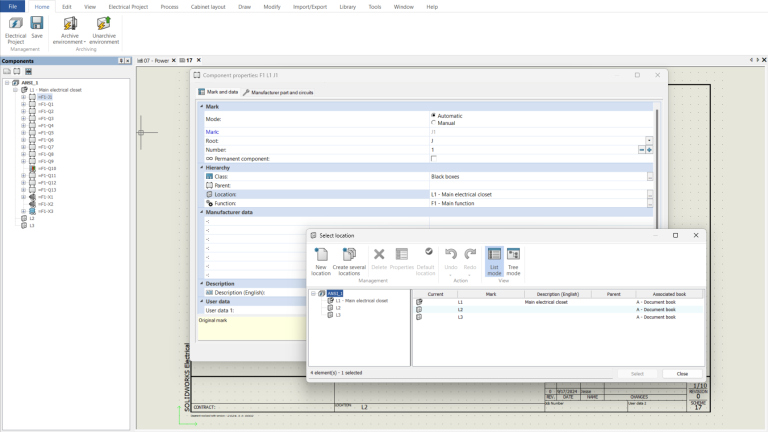
How to assign components to locations in a SOLIDWORKS Electrical Cabinet Layout
The first method of assigning locations is to view the component properties in the component tree by right-clicking on the component, then selecting Properties > Location ellipsis, then select the appropriate location.
The second method is to simply drag and drop from within the component tree.
Which method to use will depend on your workflow and location structure.

Assigning Components
As you can see, once the components are all properly assigned to their respective locations, they now appear in the tree under the 2D cabinet Layout tab.

Components appear in the tree under the 2D Cabinet Layout tab
Editing or Adding Locations to Electrical Projects
For editing existing locations, or adding new ones, we can navigate to Electrical Project > Locations. This will grant access to the properties of all locations within the project.

Locations tab for editing or adding locations
Learn more about SOLIDWORKS Electrical Cabinet Layout
Attend a SOLIDWORKS Electrical training course live online to get more 2D cabinet layout tips.
